What’s changed?
Meeting Notetaker Improvements as of 2/20/2026
We have made a couple of updates to the notetaker based on your beta feedback:
- Support for rescheduled meetings: the notetaker should now be joining all meetings that have been rescheduled as expected.
- Change in when the notetaker joins the meeting: The notetaker now joins right at the meeting start time instead of 2 minutes prior, and will continue to wait up to 5 minutes in the meeting until the host joins.
- Speaker mapping: when viewing the transcript in the post-meeting experience, you should now see speaker names and identification for the participants in your meeting.
- Recordings are now stored for two years instead of indefinitely.
What is it?
Admins can turn on HubSpot Meeting Notetaker so sales conversations are automatically recorded, transcribed, and stored in HubSpot. This frees your team to focus fully on customers instead of note-taking. The tool seamlessly joins your Zoom, Google Meet, and Microsoft Teams meetings with external contacts that are stored in your CRM.
Why does it matter?
Sales reps can engage completely in customer conversations rather than dividing attention with manual note-taking. Meeting summaries are automatically logged in HubSpot immediately after each call, providing valuable context for follow-ups and coaching opportunities.
How does it work?
To turn on Sales Meeting Notetaker for your account:
- Navigate to Settings > Tools > Calling > Meetings > Meeting Notetaker
- Toggle the Sales Meeting Notetaker feature to on
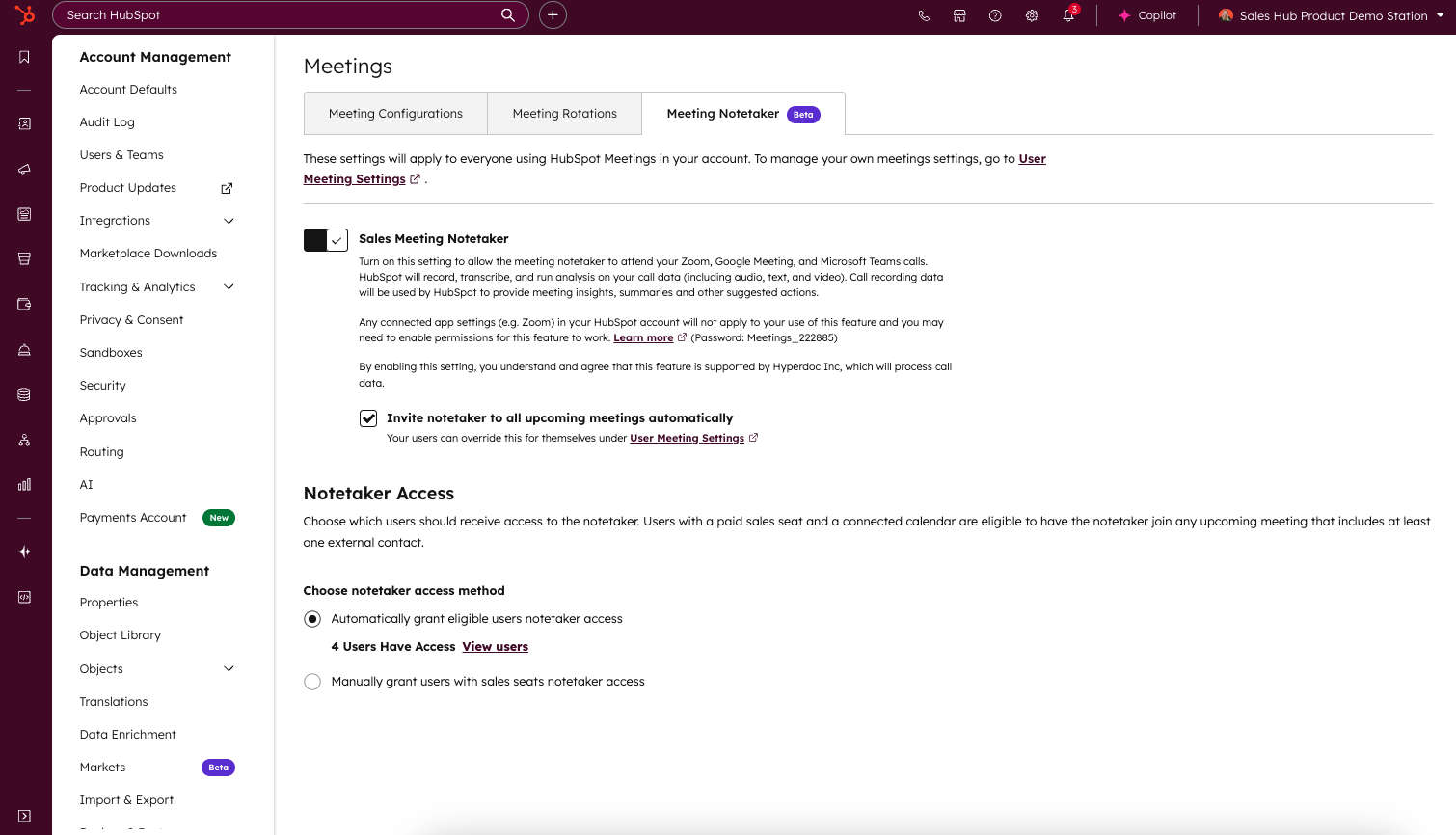
By default, the notetaker is set to join all meetings automatically, though you can change this default for your users on your account by checking/unchecking the setting Invite notetaker to all upcoming meetings automatically. If the notetaker is not invited to meetings automatically, it will need to be manually invited to each meeting that you want it to join and record.
Users are able to manage this setting for their own individual user by navigating to their user meeting settings in Settings > General > Calendar.
Once activated, Sales Meeting Notetaker automatically joins newly scheduled meetings with external contacts for all sales reps with Sales Hub Professional or Enterprise seats who have connected calendars in HubSpot.
Admins can also control which users have access to the notetaker. Select Automatically grant eligible users notetaker access to automatically provide existing users (and users that you might onboard later) access to the notetaker. Eligible users include users who have a Sales Professional or Sales Enterprise Seat and have their calendar connected in HubSpot.
Select Manually grant users with sales seats notetaker access to control exactly which users are granted access to the notetaker. Use this option if you do not want all users to record their meetings.
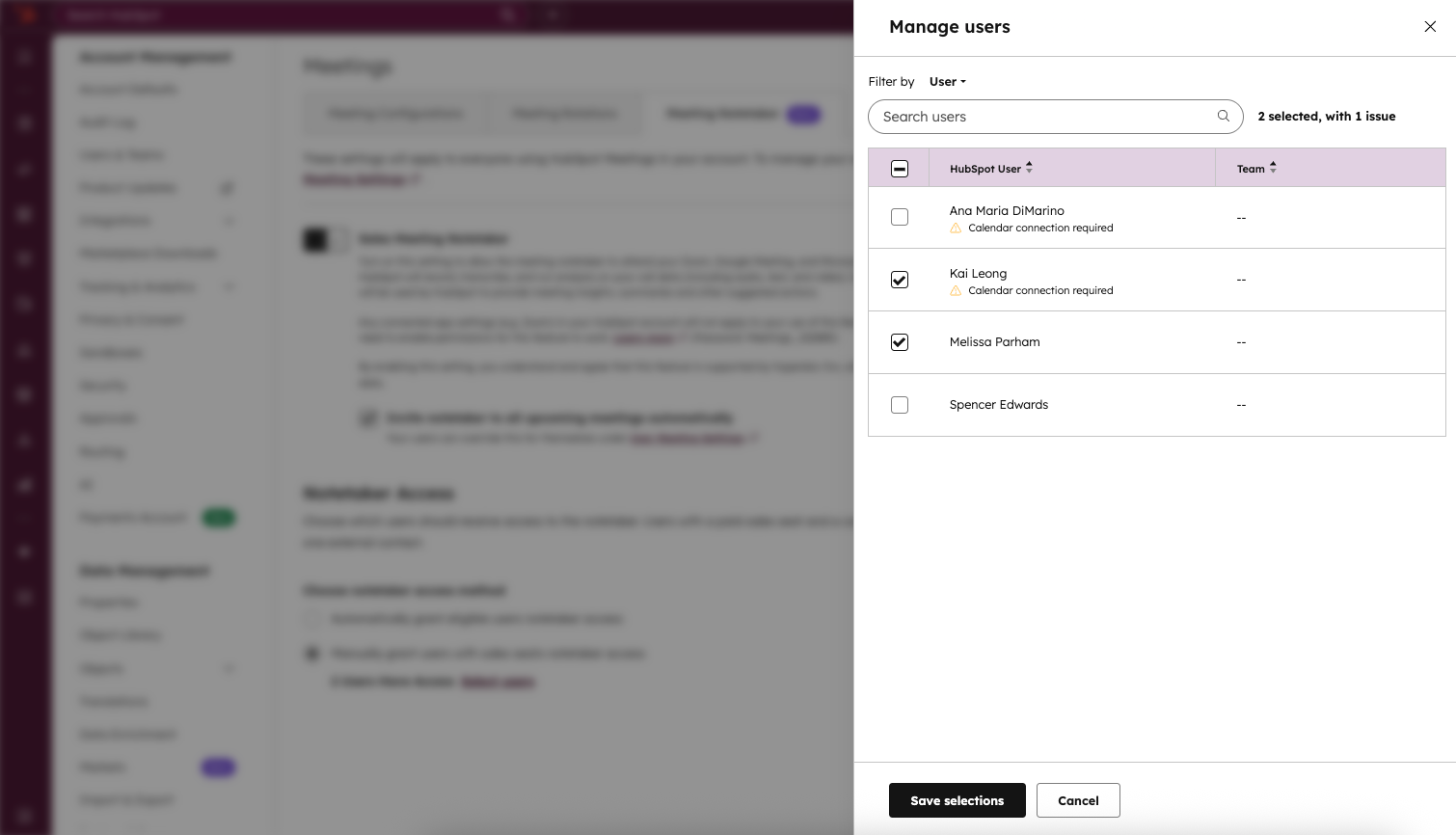
You can choose to provide notetaker access to a user even if they aren't currently eligible (e.g. they don't have their calendar connected or don't have an assigned sales seat). While the notetaker won't function for them yet, it will be available to those users as soon as the required conditions are met.
Before a meeting begins, users are able to view and change whether a notetaker is set to join their meeting. You can do this through the CRM activity timeline when expanding the meeting activity card:
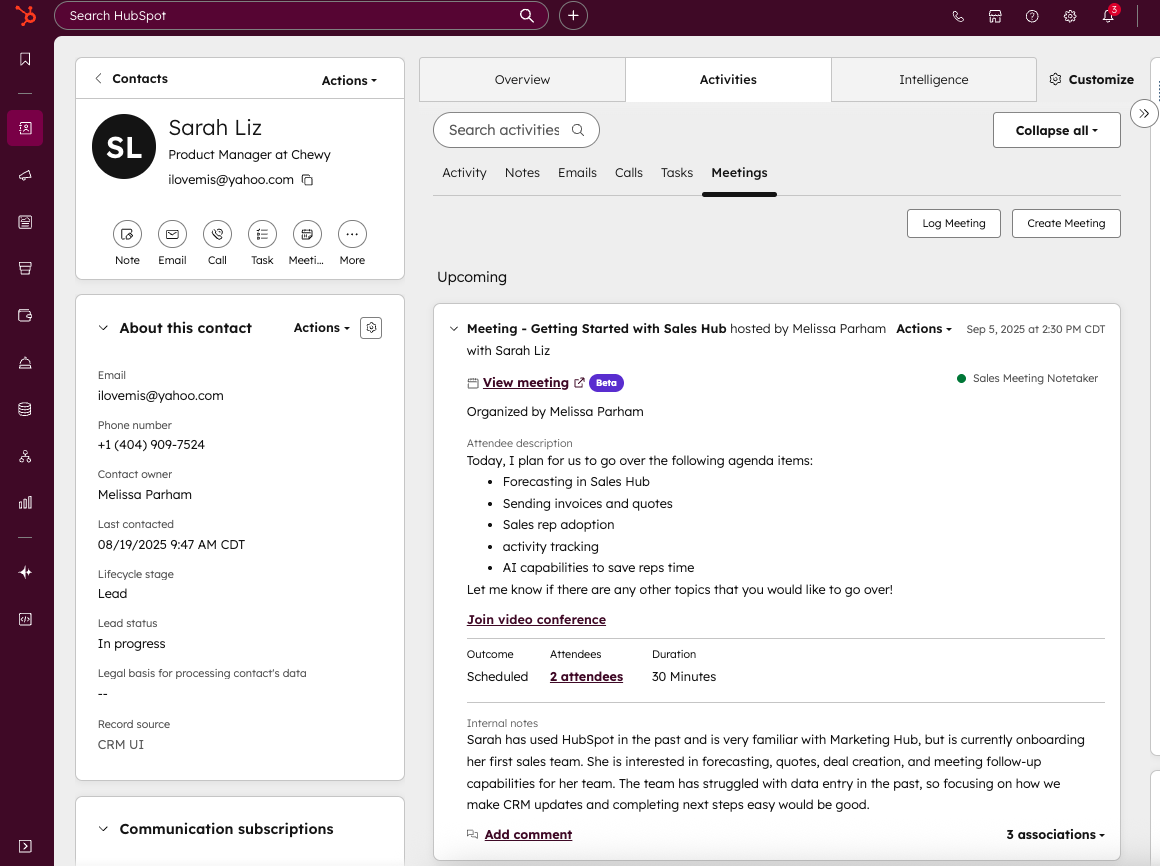
Click Actions > edit to change whether the notetaker is invited to the meeting.
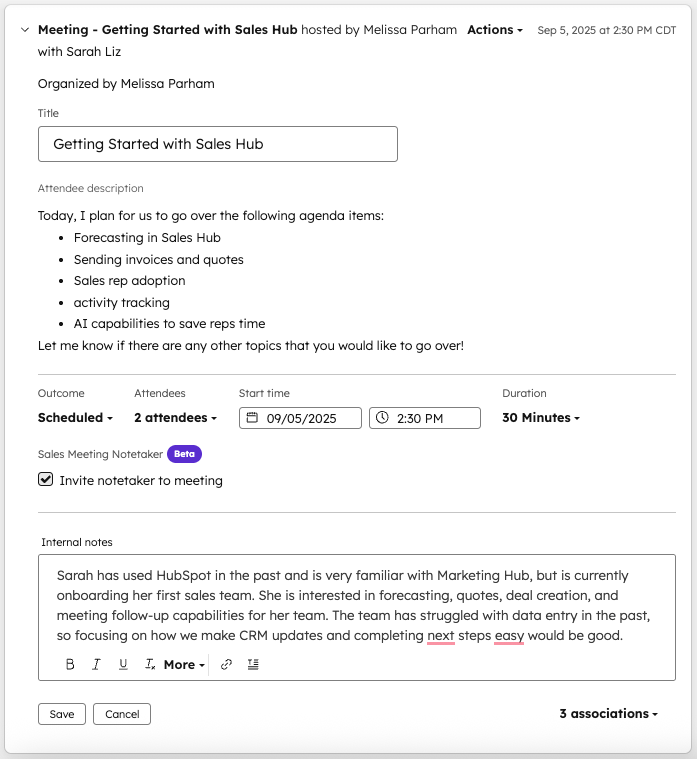
Users can also view/control the notetaker through the meeting record page:
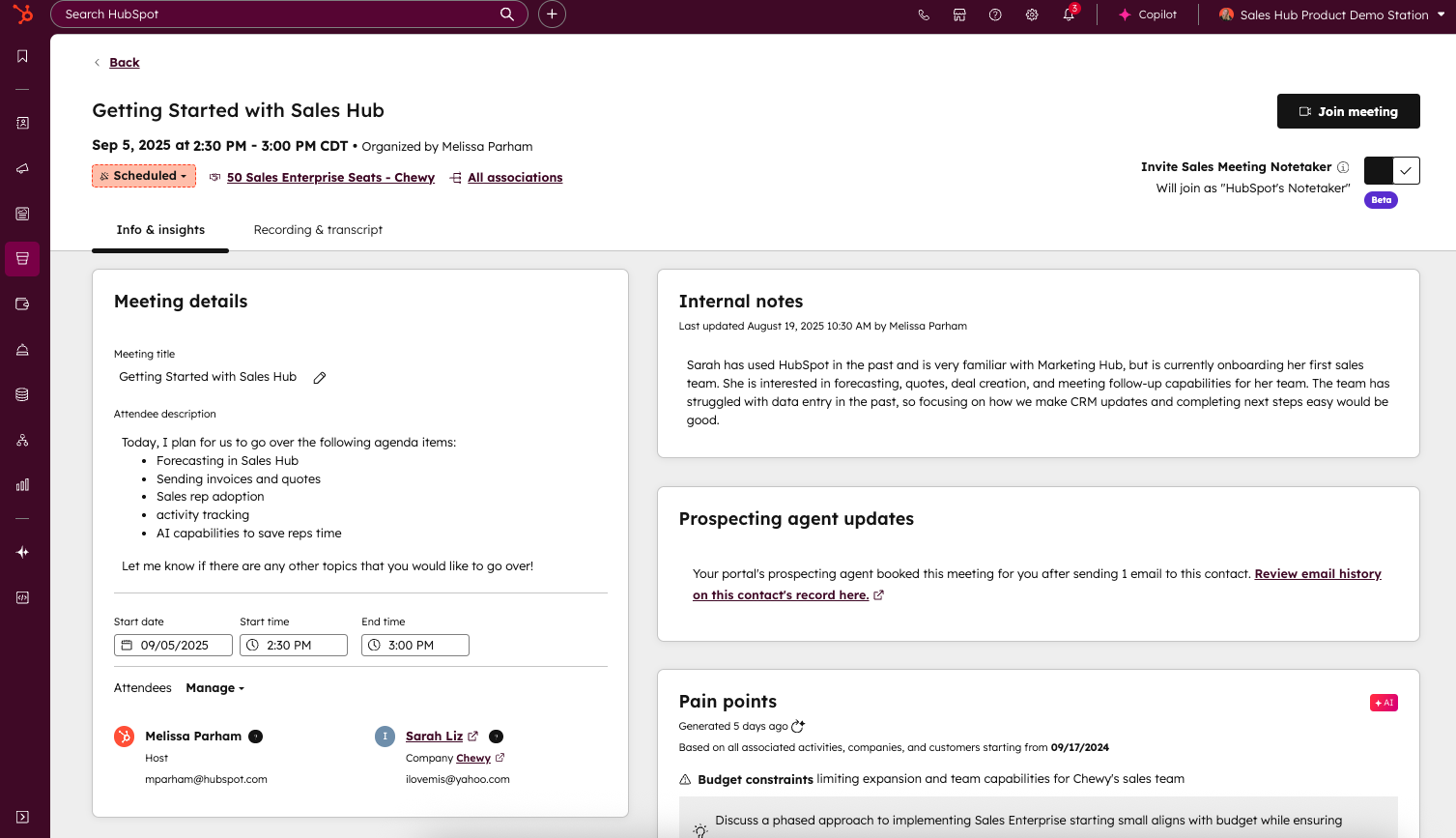
Toggle Invite Sales Meeting Notetaker to on if you wish for the notetaker to join the upcoming meeting.
Your team gets immediate access to recordings, transcripts, detailed summaries, and action items right after meetings end—without needing to be the host of the video conference link or install additional integrations.
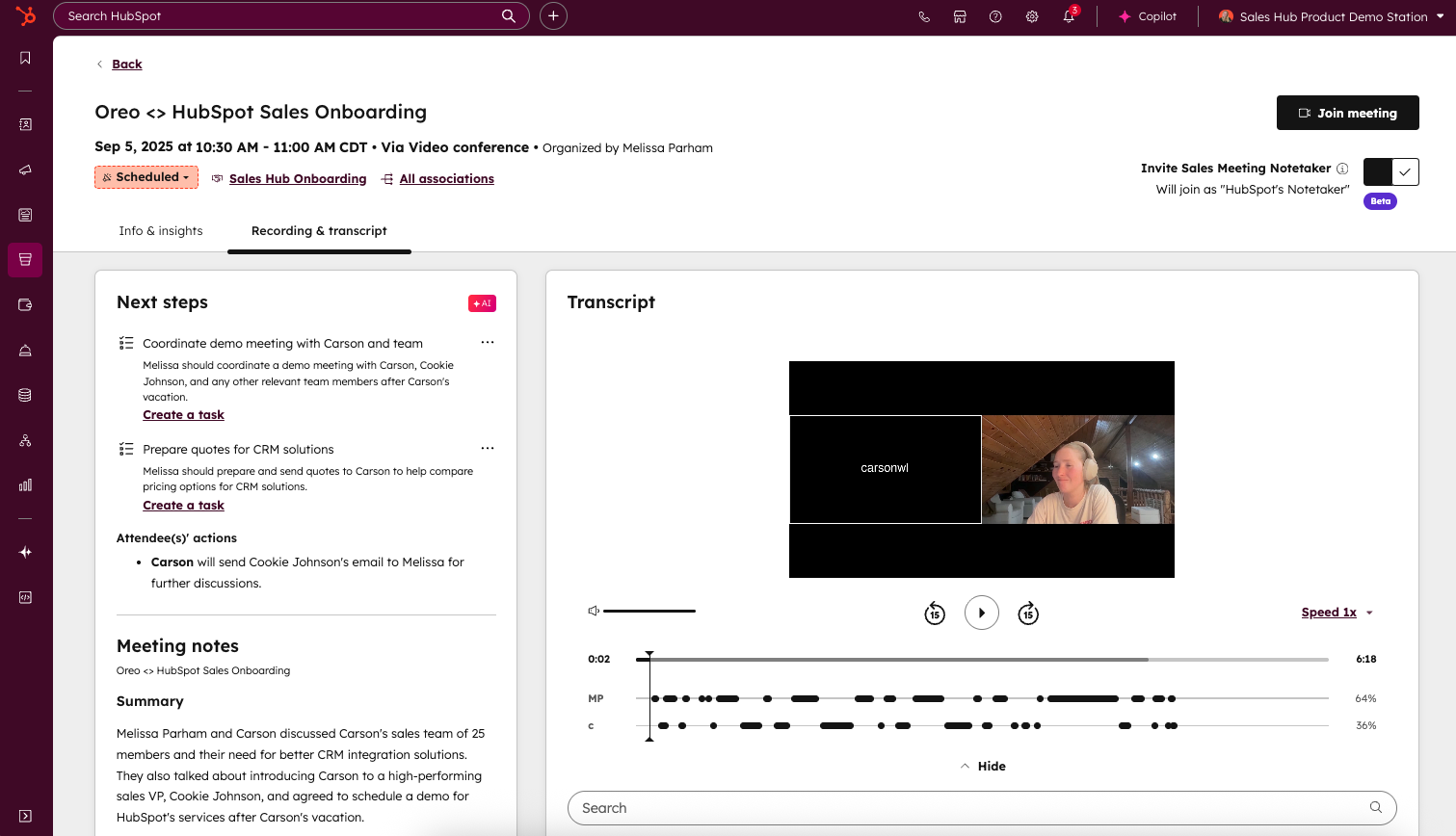
Sales Meeting Notetaker can join any meeting that has at least one external contact associated to the meeting and has a meeting location set as either a Zoom, Google Meet, or Microsoft Teams link. When receiving the transcript of the meeting, the language of the transcript is determined by the language being used for meeting captions in the video conference provider. You can receive transcripts in different languages from Zoom and Teams meetings by ensuring the meeting caption language is set to your preferred language.. Today, Google Meet transcripts will only be provided in English.
Users can add a Zoom, Google Meet, or Microsoft Teams link to their meeting directly through their external calendar, a HubSpot video conference location when booking a meeting through the CRM, or a HubSpot scheduling page.
Who gets it?
Sales Pro, Sales Enterprise



.png?width=193&name=jos%20(1).png)