What is it?
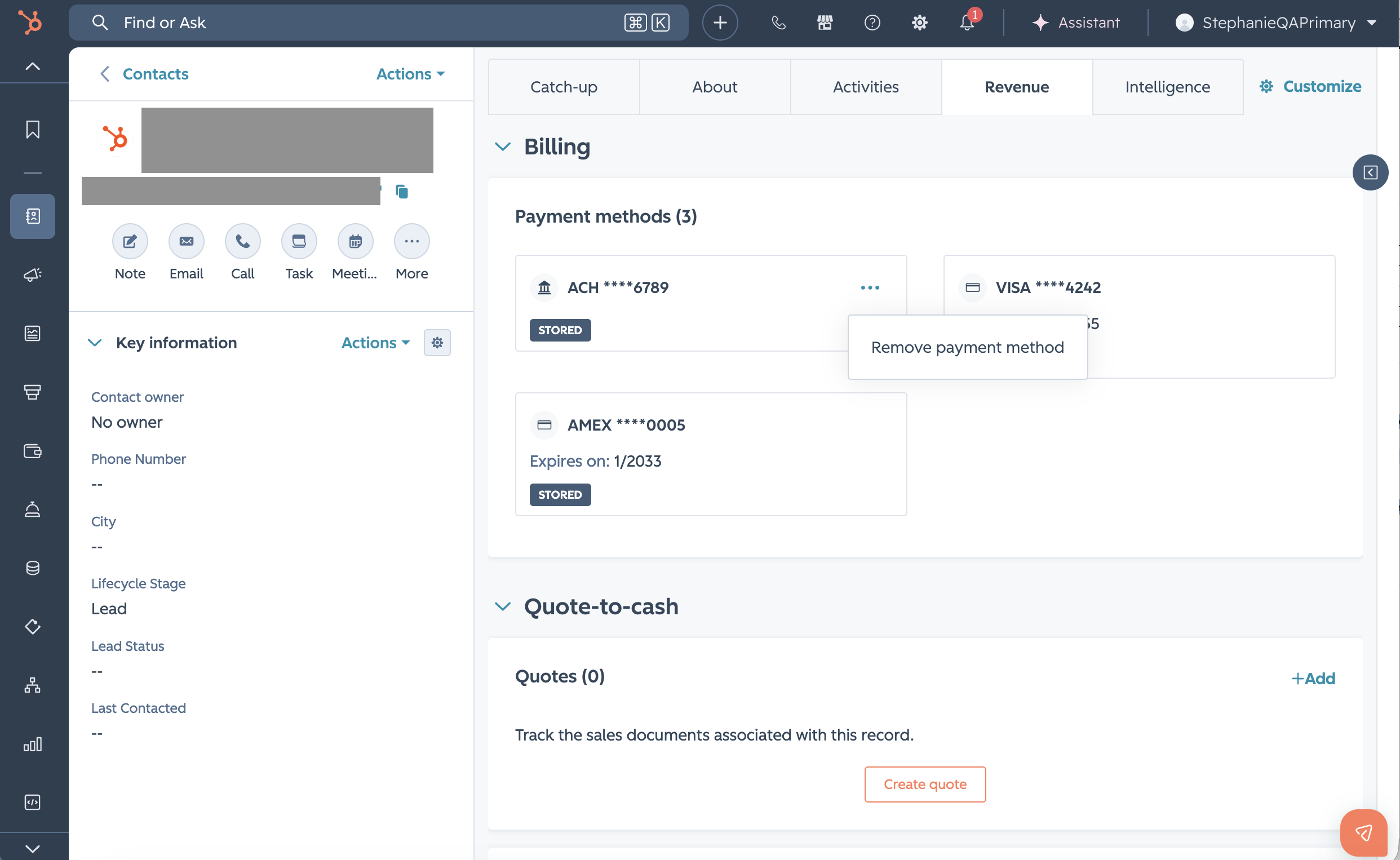
You can now remove a stored payment method directly from a contact or company record in HubSpot — no support ticket required.
Why does it matter?
Until now, there was no self-serve way to delete a stored payment method. Sellers had no clean way to remove outdated or incorrect card and ACH details from a buyer's record, which could lead to failed charges or friction in the billing process.
This update gives you direct control over stored payment data without needing to contact support.
How does it work?
Finding the Revenue tab
The Revenue tab surfaces all payment-related data for a contact or company in one place: stored payment methods, billing details, associated invoices, and subscriptions.
To access it:
- Navigate to CRM > Contacts or CRM > Companies
- Open a record and click the Revenue tab
- Stored payment methods appear in the Billing section
Removing a stored payment method
From the Billing section of the Revenue tab:
- Locate the stored payment method (labeled with card or bank type and last 4 digits)
- Click the ··· menu on the payment method
- Select Remove payment method
- Confirm the action
The payment method is removed immediately and can no longer be used to charge the buyer via invoices or subscriptions.
Note: Removal is permanent. Buyers can re-save a payment method by completing checkout again on any invoice, payment link, or subscription.
Who gets it?
All HubSpot hubs and tiers. Payments (HubSpot payments or Stripe payment processing) must be enabled on your account to use stored payment methods.



.png?width=193&name=jos%20(1).png)