What is it?
You can now request approval from a team on marketing emails, landing pages, website pages, blog posts, social posts and knowledge base articles. Anyone on the team can approve or request changes, and the approval sidebar shows who responded on the team's behalf.
Why does it matter?
Picking individual approvers means requesters need to know exactly who reviews what, and approver lists fall out of date as people join, leave or change roles. With team approvers, you manage who can approve in Users & Teams. Requests go to everyone on the team and any member can respond, so a request isn't stuck waiting on one specific person.
How does it work?
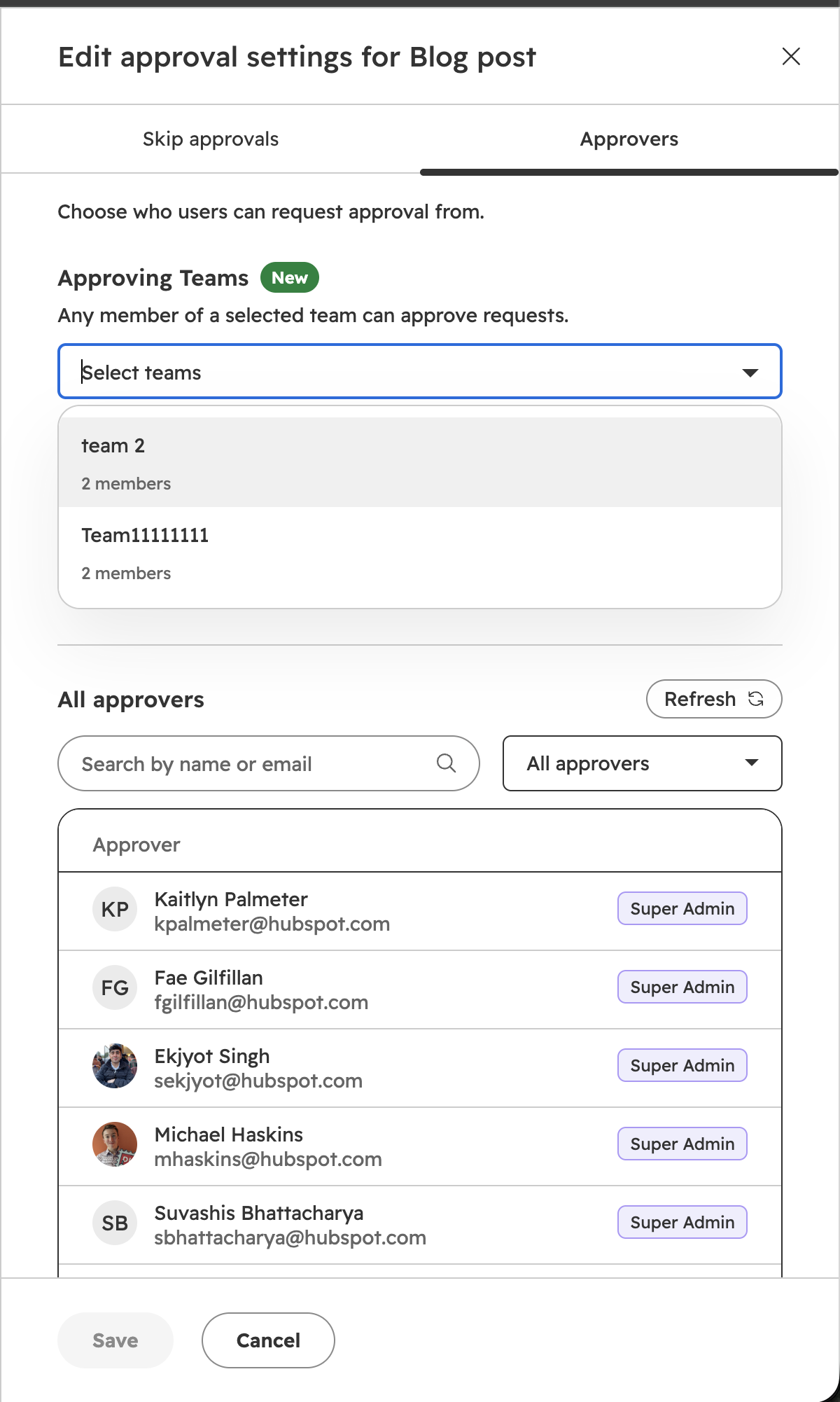
Choose which teams can approve
- In your HubSpot account, click the settings icon in the top navigation bar. In the left sidebar menu, navigate to Approvals.
- Turn on approvals for a content type, or click Edit next to one that's already on.
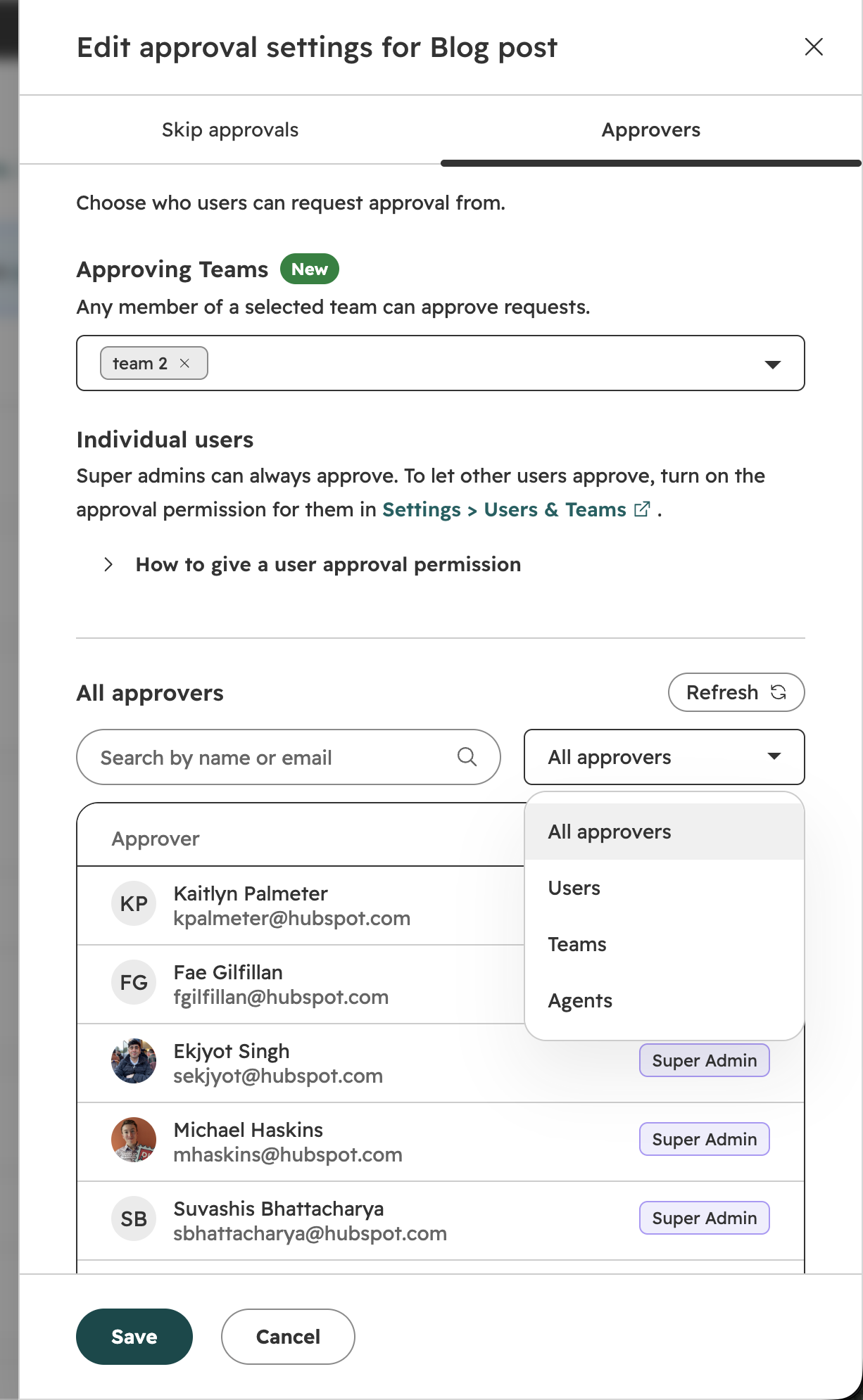
- On the Approvers tab, under Teams, click the Team approvers dropdown menu and select the teams that can approve this content type.
- Save your changes.
Only Super Admins can choose team approvers. Teams with no members can't be selected.
Request approval from a team
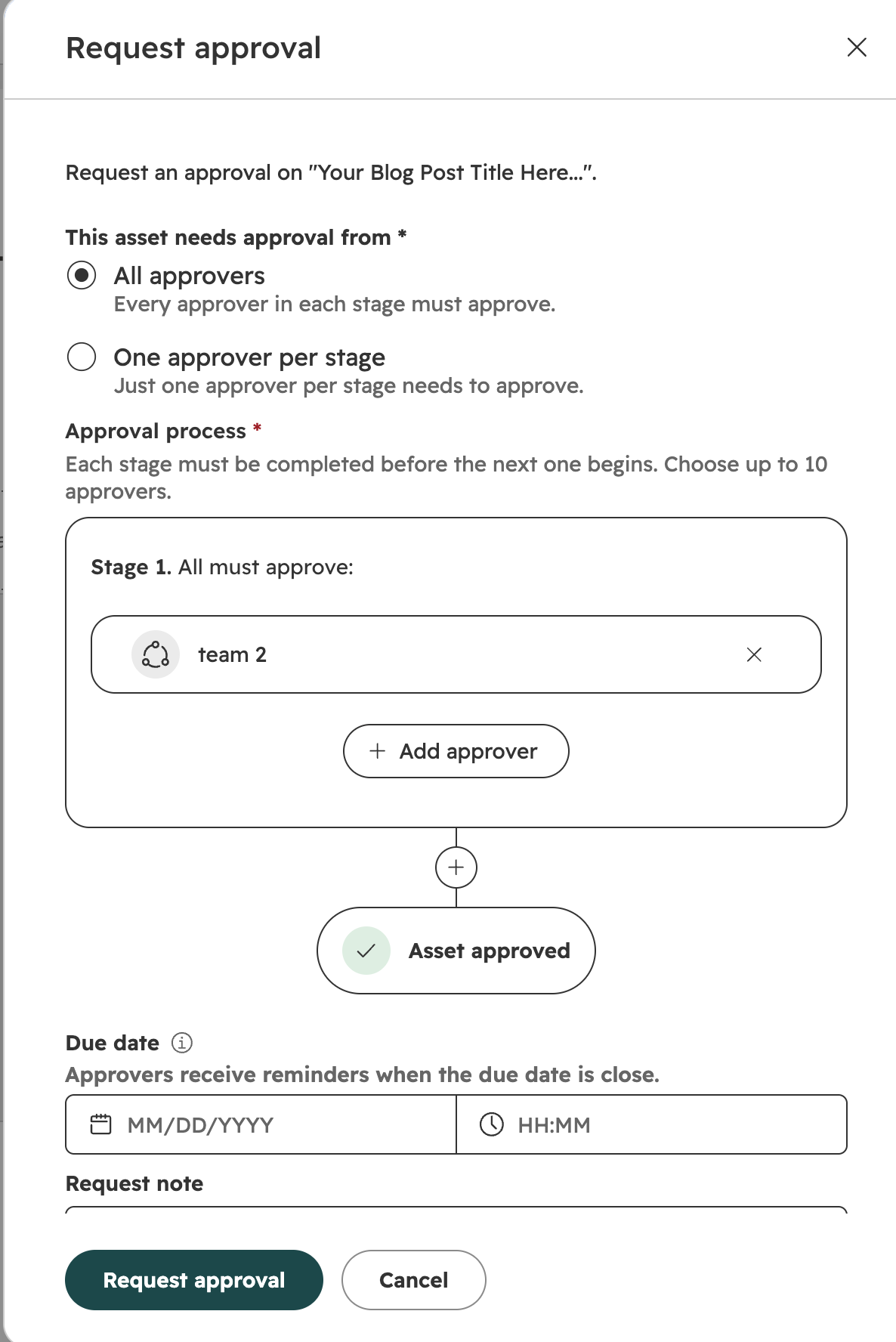
- In the content editor, click Request approval.
- In the approvers dropdown menu, select a team from the Teams section. You can add teams and users to any stage.
- Add a due date and a request note if you'd like, then click Request approval.
Everyone on the team gets the request notification and any reminders.
Approve on behalf of your team
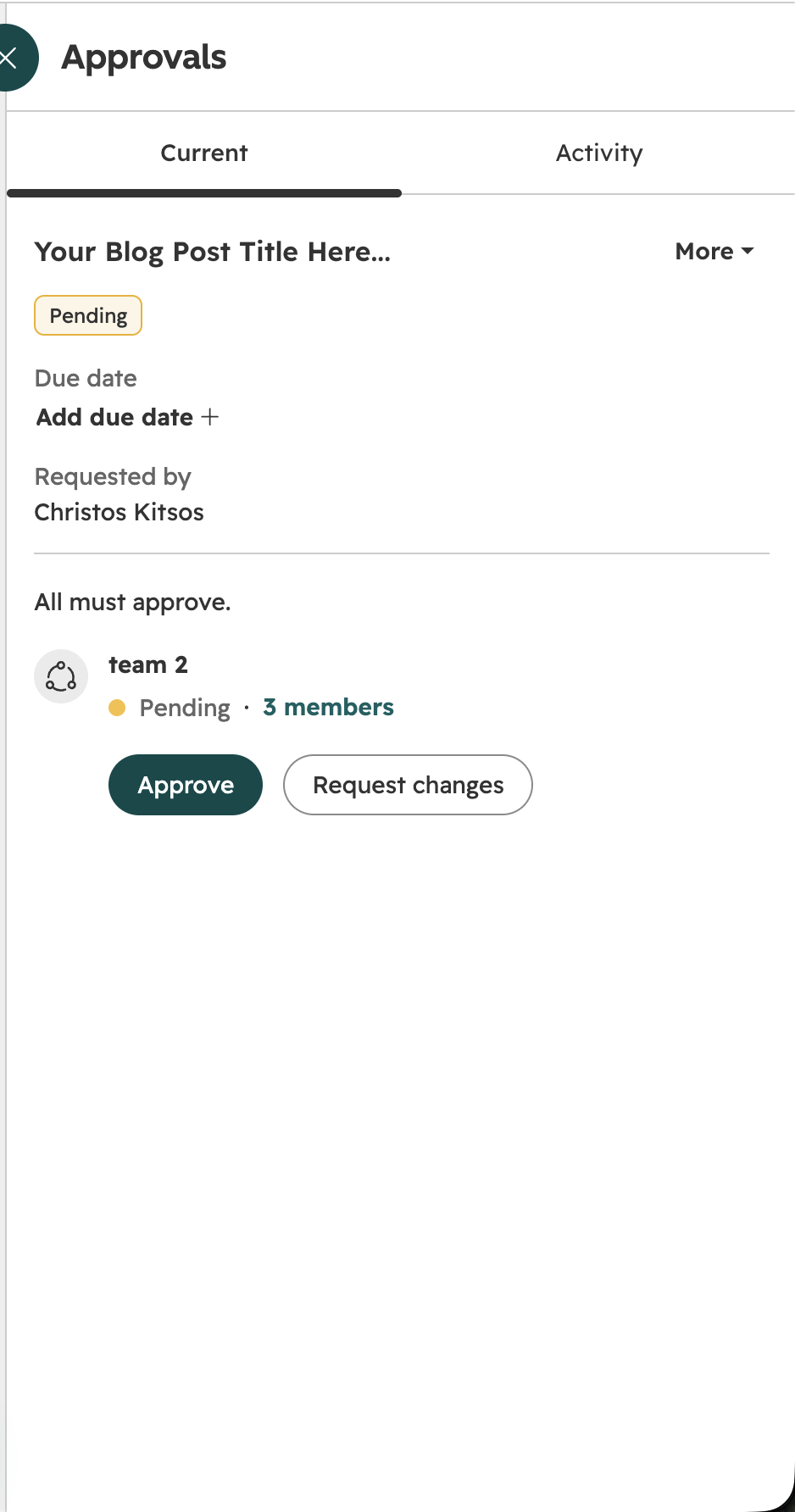
- Open the content from your notification, or click View approval in the editor.
- Under the team's name in the approval sidebar, click Approve or Request changes.
One member's response completes the team's step, and the sidebar shows who responded, for example Approved by [name]. While the team's step is pending, click the member count next to the team's name to see who's on it.
Good to know
- A team counts as one approver toward the limit of 10 approvers.
- Team members can approve on behalf of their team even if they don't have the Approve permission. Being on a team doesn't change their individual approval permissions, and users removed from a team can no longer approve on its behalf.
- Only users on the team can approve for it, including users who have it as an additional team. Members of child teams can't approve for a parent team.
- If you requested the approval, you can't approve it on behalf of a team you're on.
- If you're on more than one team in the same approval, approve for each team separately.
- If a team has no members, or is no longer set up to approve, the approval sidebar shows a warning so the team can be removed as an approver or updated.
Who gets it?
Marketing Hub Enterprise, Content Hub Enterprise