What is it?
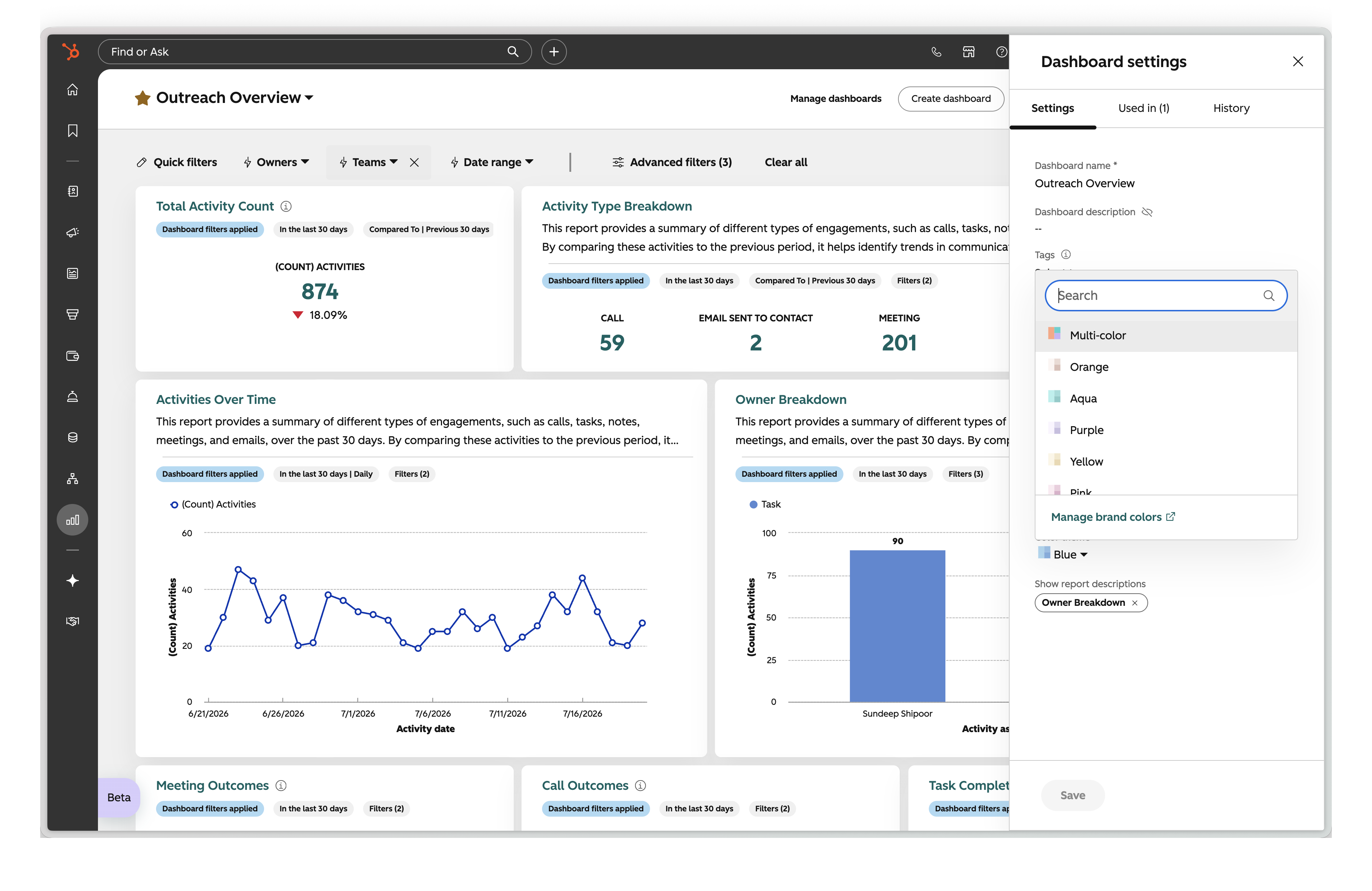
You can now apply a color theme to an entire dashboard, so all eligible reports display using the same color palette without changing individual report settings.
Why does it matter?
Dashboard color themes let you set a consistent look for an entire dashboard in one step, making your data easier to read and understand at a glance.
How does it work?
- Open a dashboard and click Actions > Dashboard settings.
- Locate the Theme control in the dashboard-level settings.
- Select a theme (such as Blues, Greens, or a Brand Kit palette). All eligible reports on the dashboard will re-render with the selected theme after saving.
The same report can appear on different dashboards, each with its own theme.
Note: Only users with dashboard edit permissions can change the theme. Users with view-only access will see the selected theme but cannot modify it.
Who gets it?
All hubs and tiers


.png?width=193&name=jos%20(1).png)