What is it?
Checkout fees can now be used when creating a manually billed subscription. Additionally, checkout fees can be removed from a subscription so buyers can update their payment method.
Why does it matter?
Checkout fees allow a fee to be automatically applied when a specific payment method is used at checkout. Now, these fees can be applied to invoice billed subscriptions.
How does it work?
To create a manual subscription with checkout fees:
- Create a checkout fee in Settings
- On the Subscriptions index page, click Add Subscriptions then Create Subscription
- Set a Billing Contact, Company, and add line items
- Turn on Accept online payments and confirm the fee is enabled under Fees applied at checkout
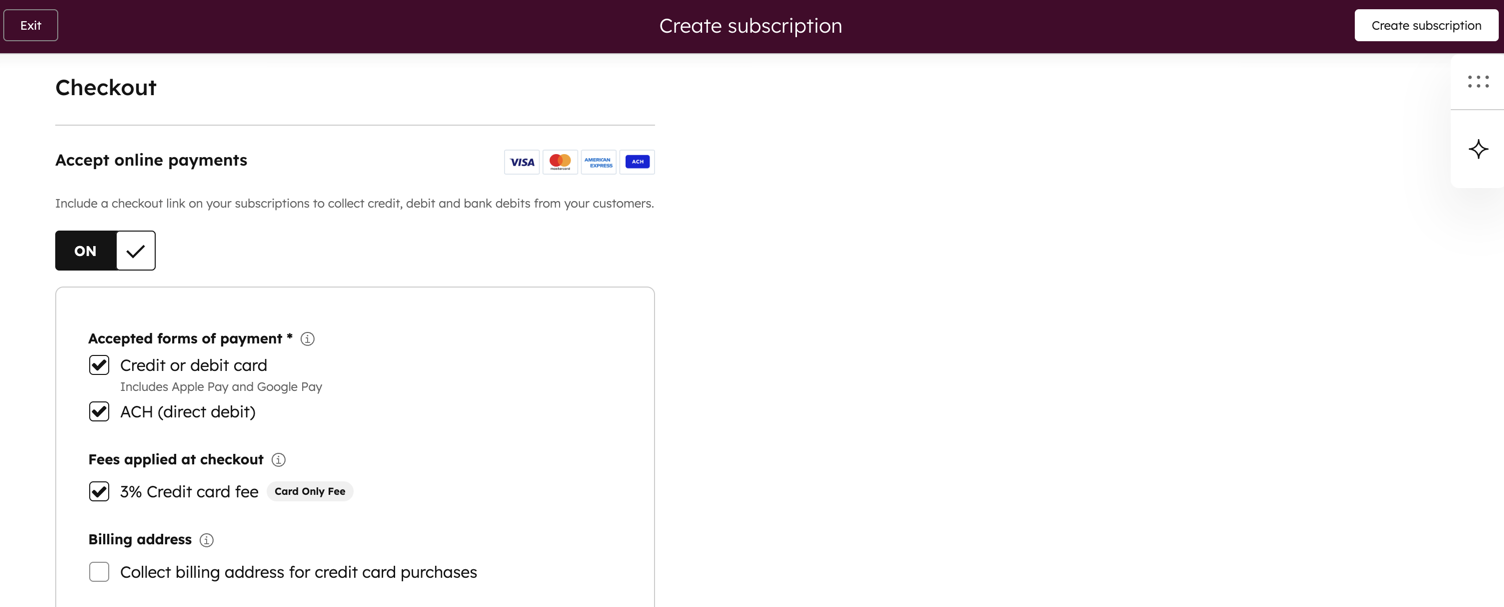
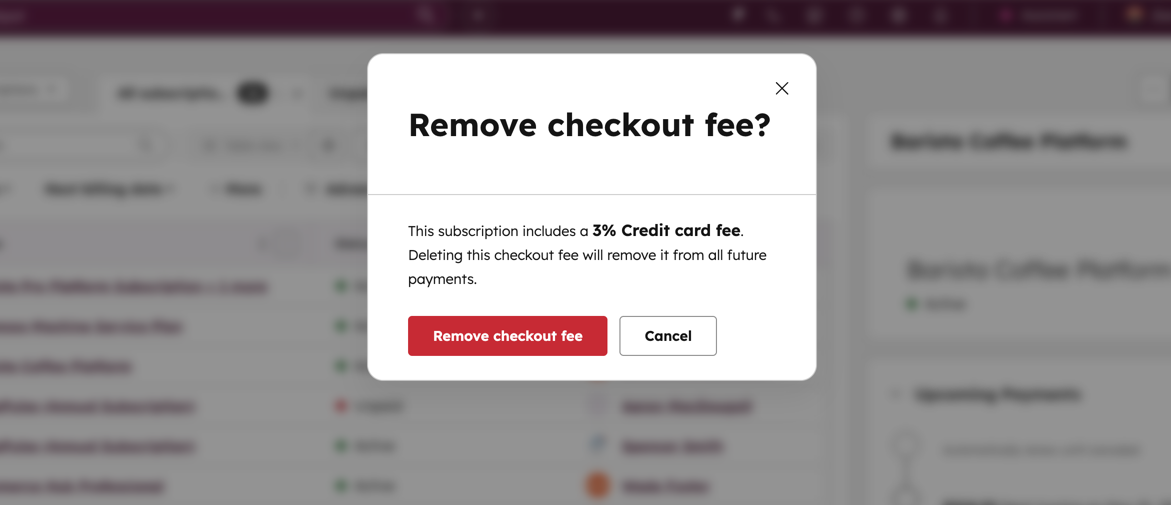
To remove a checkout fee from a subscription and allow buyers to use a different payment method for an existing subscription:
- On the Subscriptions index page, click the subscription name to open the subscription details
- In the upper right, open the Actions menu and select Remove checkout fee
- Confirm the removal of the checkout fee. Note that the fee will be removed for all future charges.
- (Optional) Open the Actions menu and select Update payment method to send a link that the buyer can use to change their payment method
Who gets it?
All hubs and tiers, Commerce Hub with HubSpot payments or Stripe payment processing



.png?width=193&name=jos%20(1).png)