What is it?
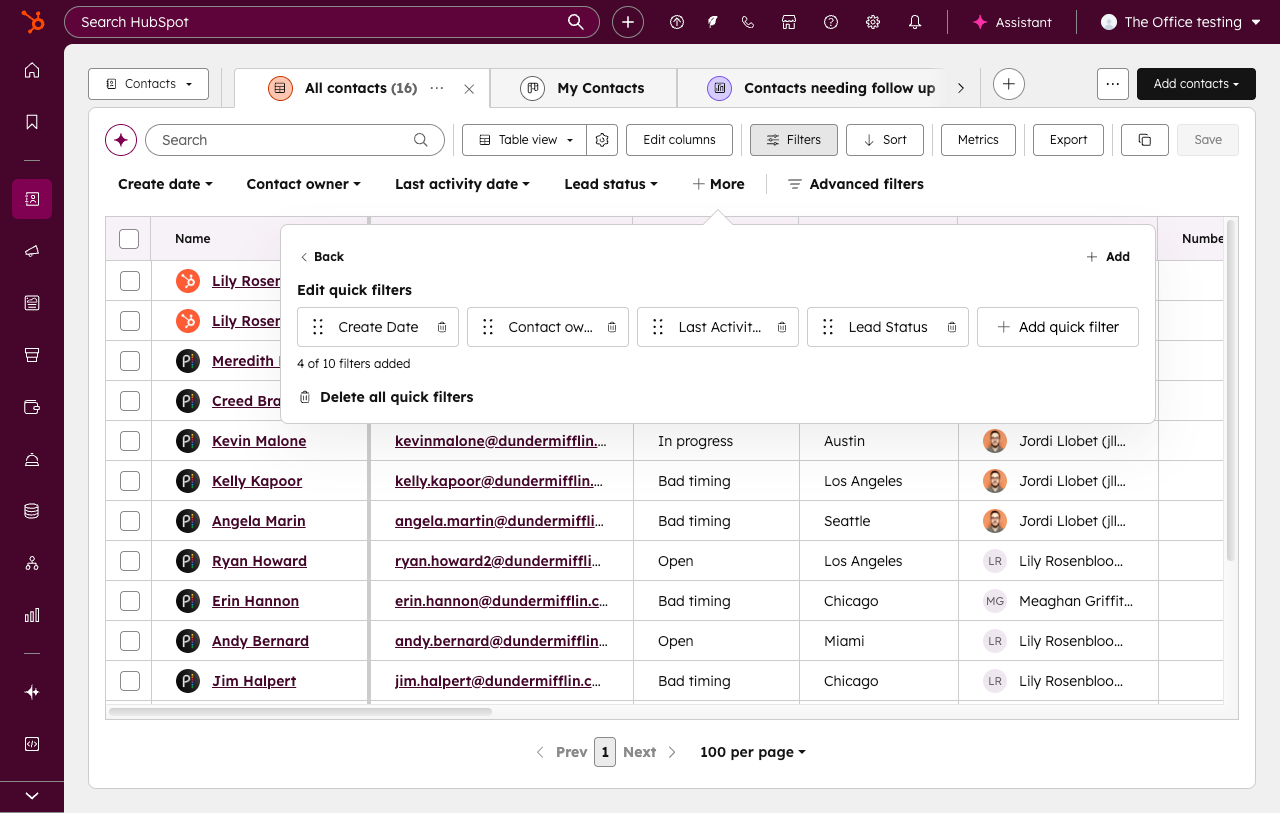
You can now customize the quick filters on your index pages. Add custom quick filters based on any property, remove default filters you don't use, and reorder filters to match your workflow.
Why does it matter?
Teams have different priorities, and the default quick filters don't always reflect what matters most to your business. By customizing your quick filters, you can focus on the properties that relate to your work, reducing clutter and helping you take action faster.
How does it work?
To customize quick filters on an index page:
- Navigate to an index page (e.g., CRM > Contacts) and click Filters to expand the filters bar.
- Click +More, then select Edit quick filters.
- From there:
- To add a custom filter, select a property from the list.
- To remove a custom quick filter you've added, click the delete icon next to the property.
- To reorder filters, click and drag a property to your desired position.
- Click Apply to confirm your changes.
- Click Save to save your selections to the view.
Note: Default views cannot be customized. Only Super Admins or the user who created the view can save quick filter changes to a view. Anyone who uses the saved view will have access to the quick filters.
Who gets it?
All hubs and tiers.



.png?width=193&name=jos%20(1).png)