What is it?
You can now create conditional scoring rules using "and" that award points only when multiple criteria are met. Check out this quick 🎥 video demo to learn more!
Two types of conditional scoring:
- Cross-property criteria (Fit scoring): A contact or company only receives points when they meet all the property criteria.
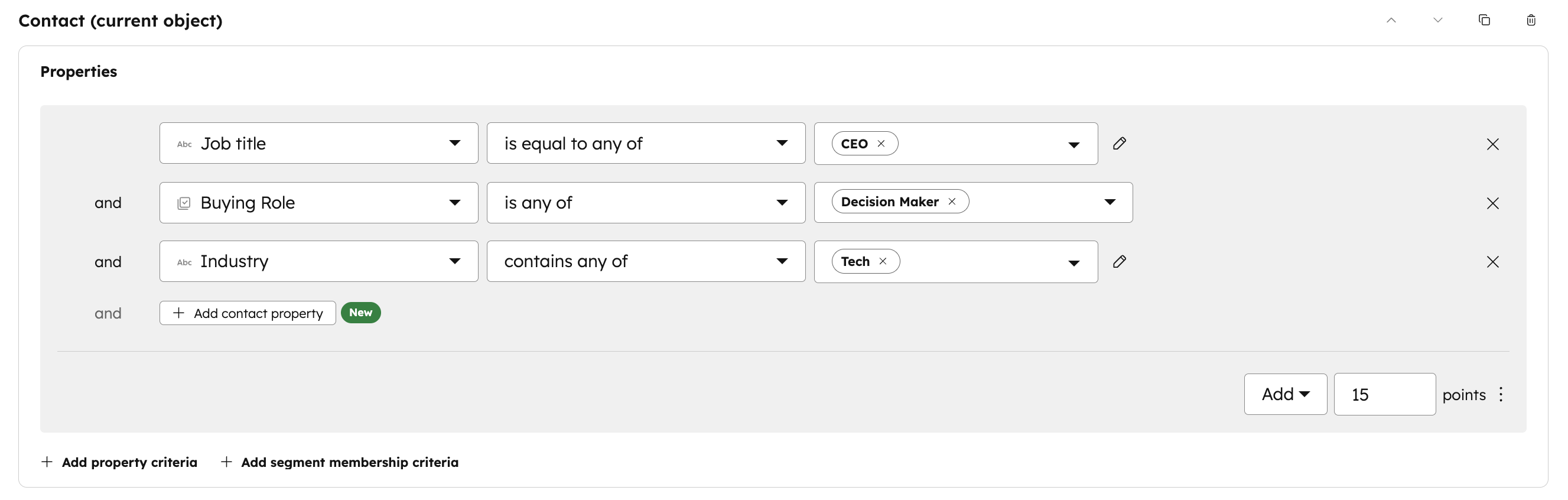
- Example: Add 15 points only when a contact's job title is "CEO" AND role is "Decision Maker" AND industry is "Tech"
- Example: Add 15 points only when a contact's job title is "CEO" AND role is "Decision Maker" AND industry is "Tech"
- Event-specific criteria (Engagement scoring): A contact or company only receives points when the action they take meets all the criteria.
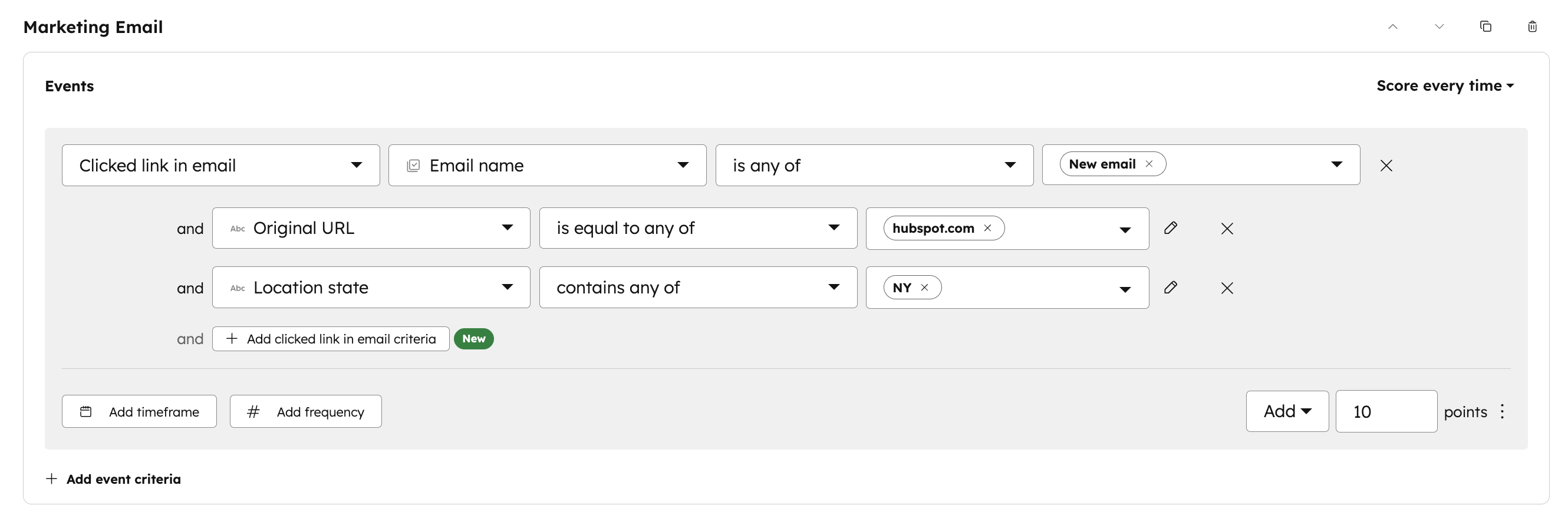
- Example: Add 10 points only for a contact that clicked link in email if email name is "new email" AND URL is "hubspot.com" AND location state is "CA"
- Example: Add 10 points only for a contact that clicked link in email if email name is "new email" AND URL is "hubspot.com" AND location state is "CA"
Why does it matter?
Previously, Lead Scoring only supported single-criterion rules. While you could use segment (list) membership or workflow enrollment as workarounds for conditional logic, those approaches added friction and required you to leave the Lead Scoring app.
Now, you can create conditional scoring rules natively within Lead Scoring. This lets you capture compound qualifications for fit (job title AND industry) and contextual signals for engagement (specific link click in a specific email), resulting in more accurate lead prioritization.
How does it work?
Check out this quick 🎥 video demo to learn more!
Steps:
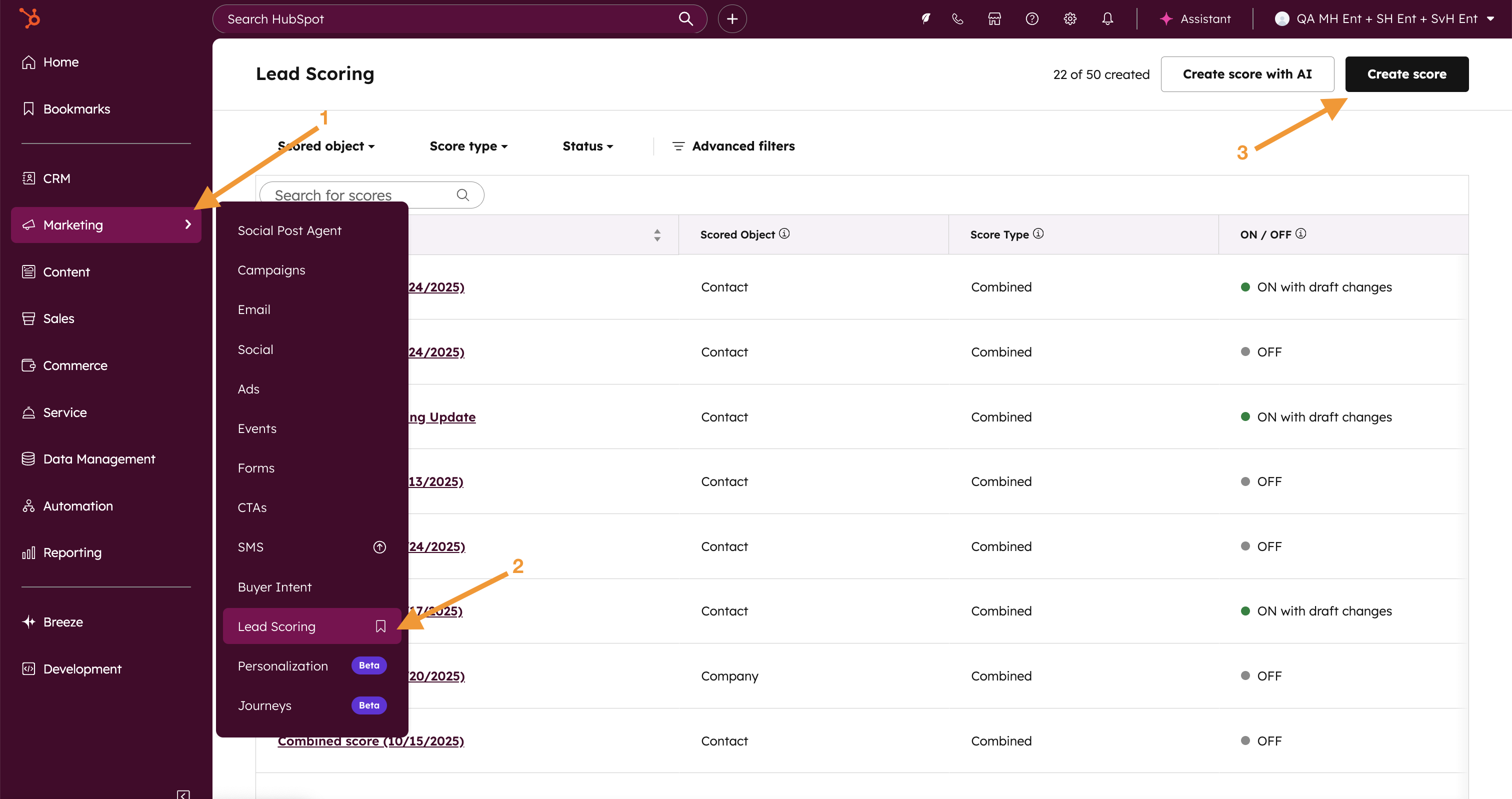
1. In the Global Navigation Bar on the left, go to Marketing > Lead Scoring. Once in the Lead Scoring app, either create a new score by clicking "Create score" or click "edit" next to an existing score.
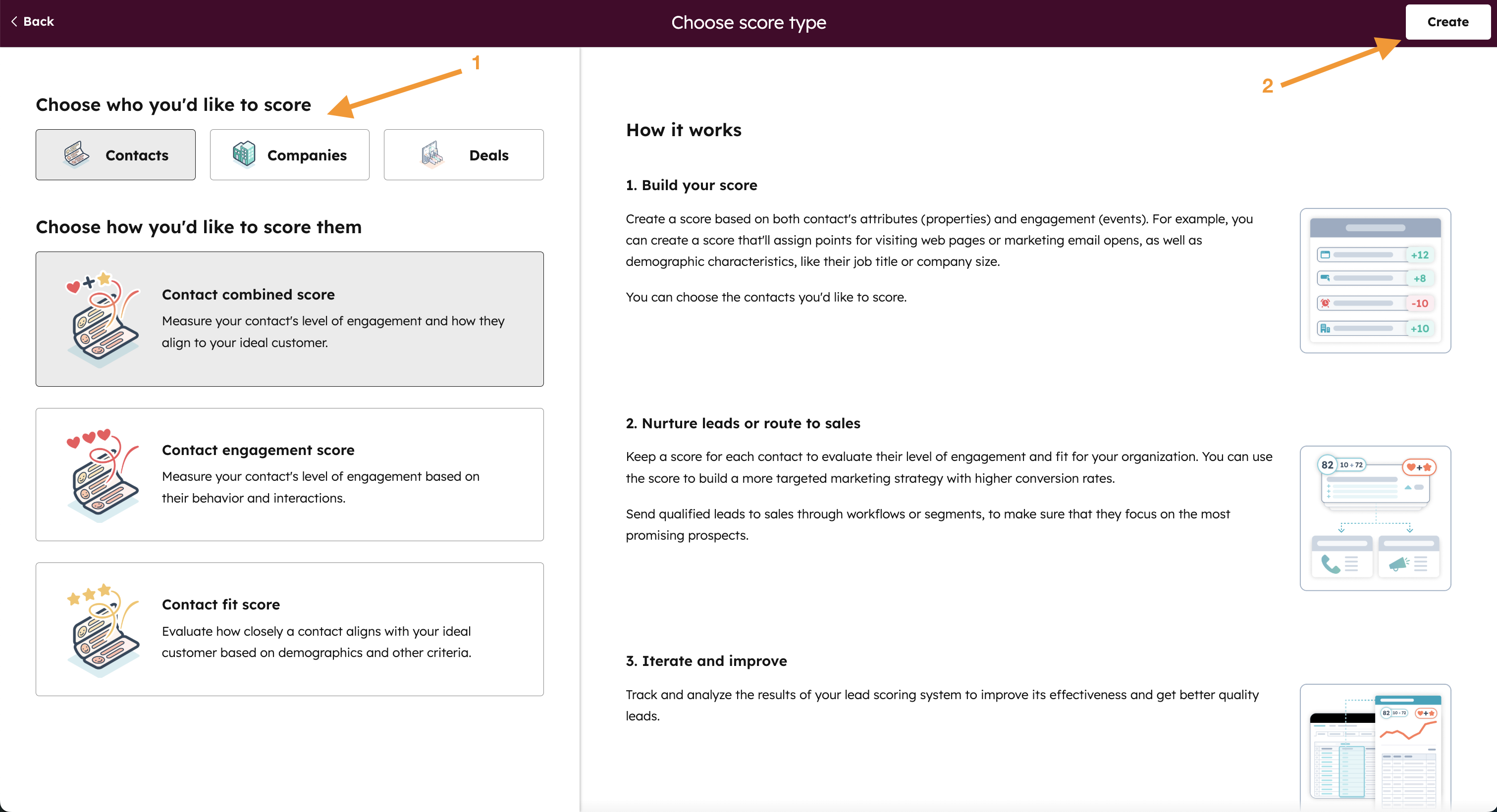
2. To create fit rules, click “+ Add property group”. To create engagement rules, click “+ Add event group”,
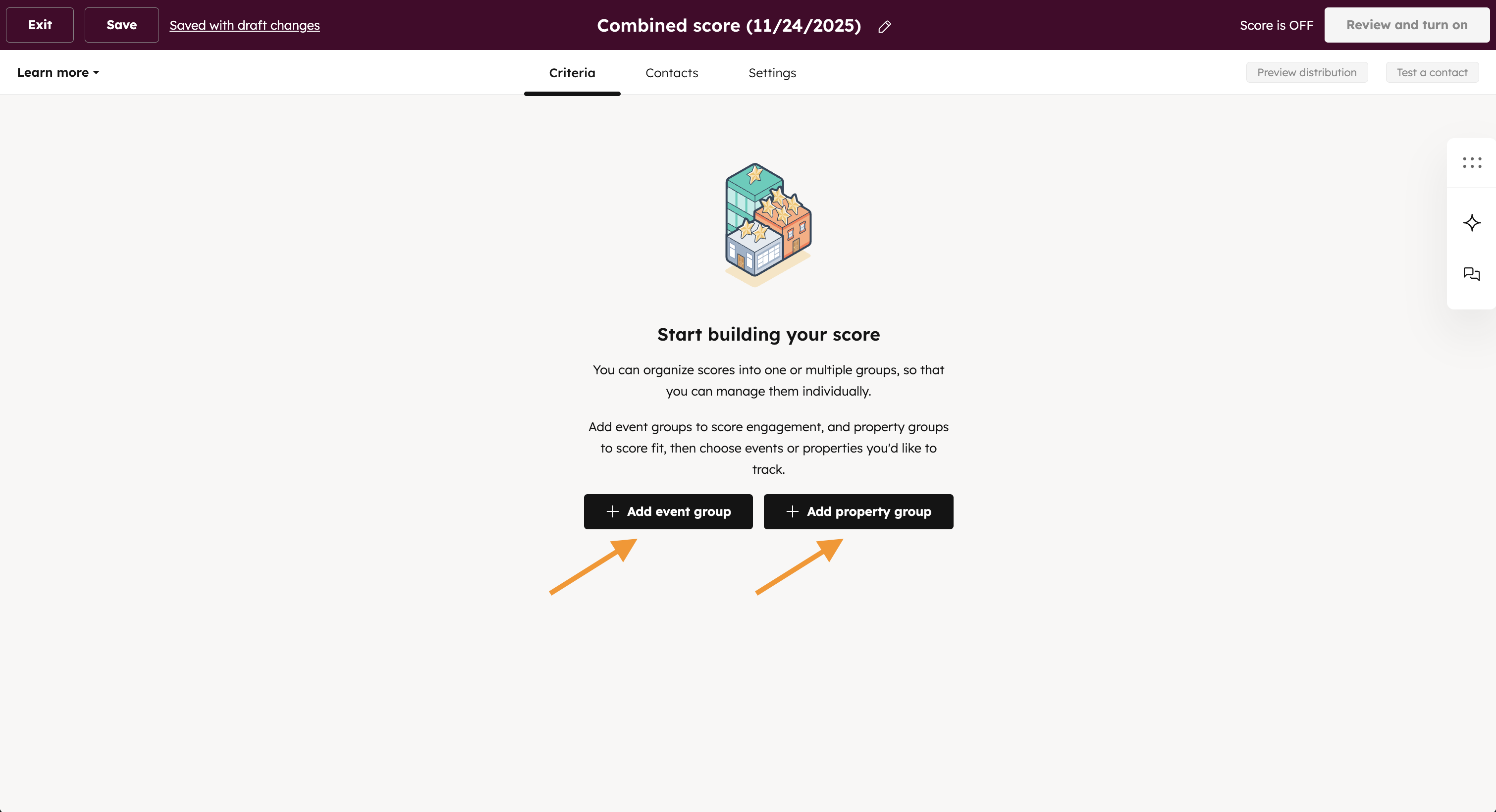
3. To create conditional fit rules, click "+ Add Object", select an object such as "Contact", and then click “Select a property”.
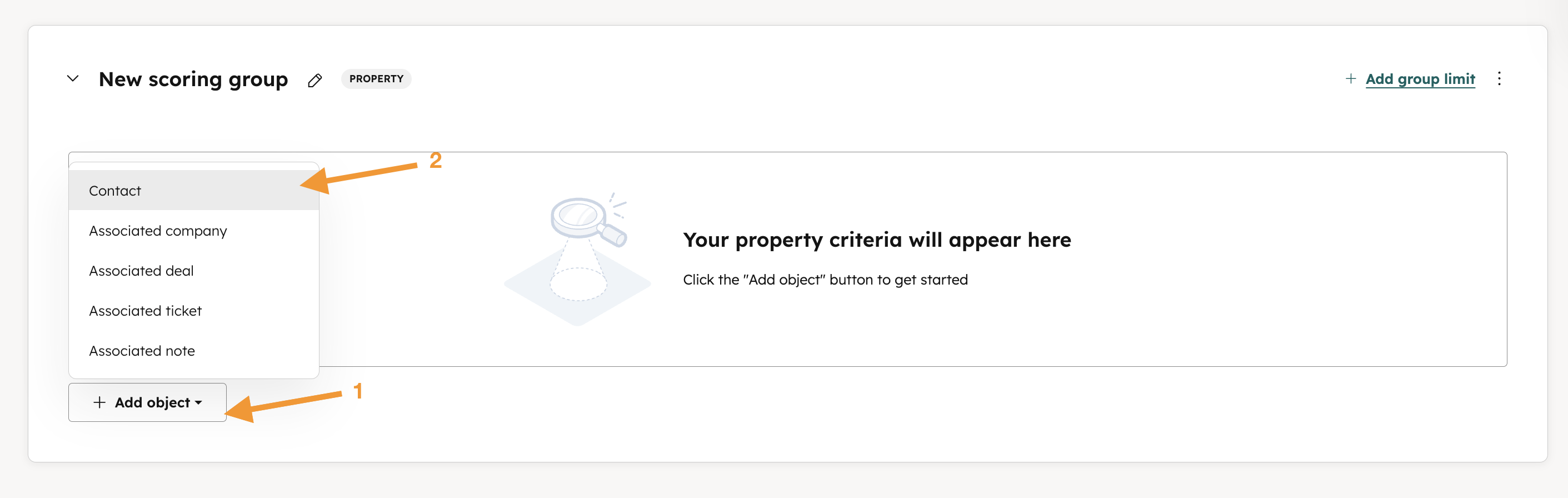
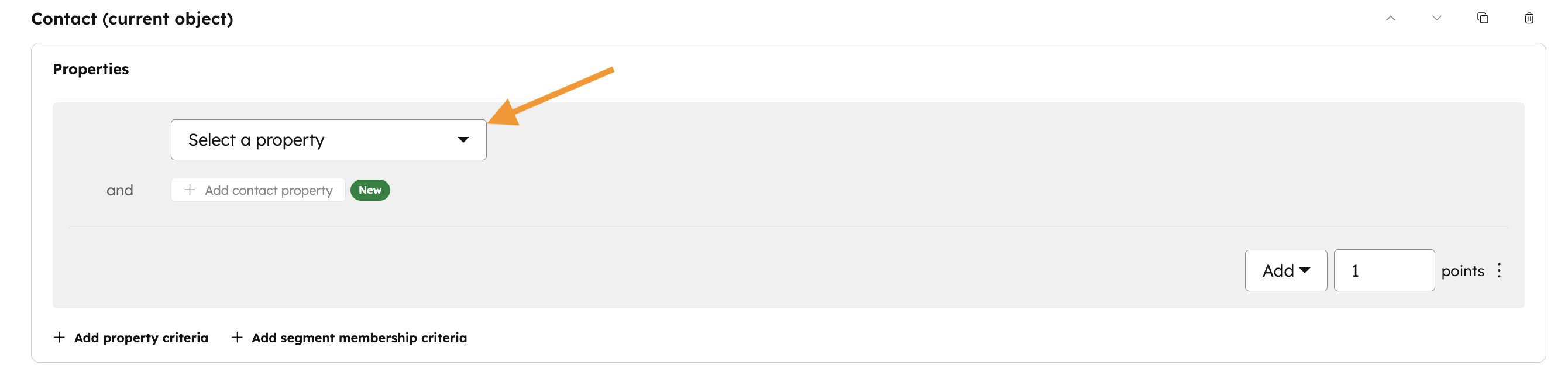
Fill out all values for the first criteria, and then click "+Add contact property" to add another condition.
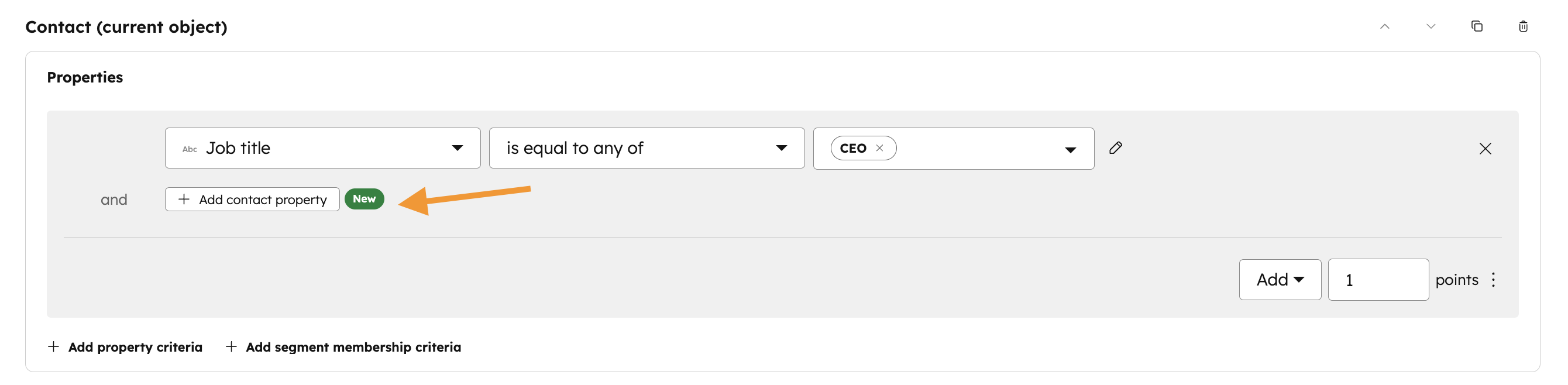
After adding all the conditions across multiple property criteria, update the number of points awarded for the conditional rule.
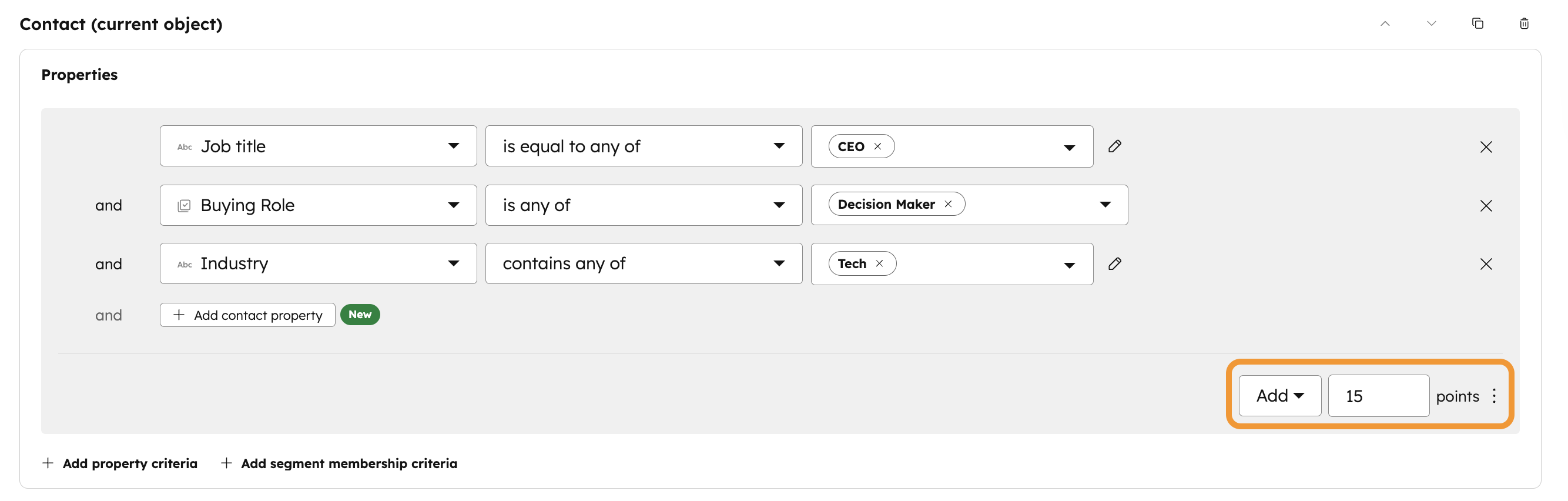
For this example, now a contact will receive 15 points only if
- their Job title is equal to any of "CEO"
- AND their Buying Role is any of "Decision Maker"
- AND their Industry contains any of "Tech".
4. To create conditional engagement rules, within an "Event Group" click “+ Add event criteria” and select an event type.
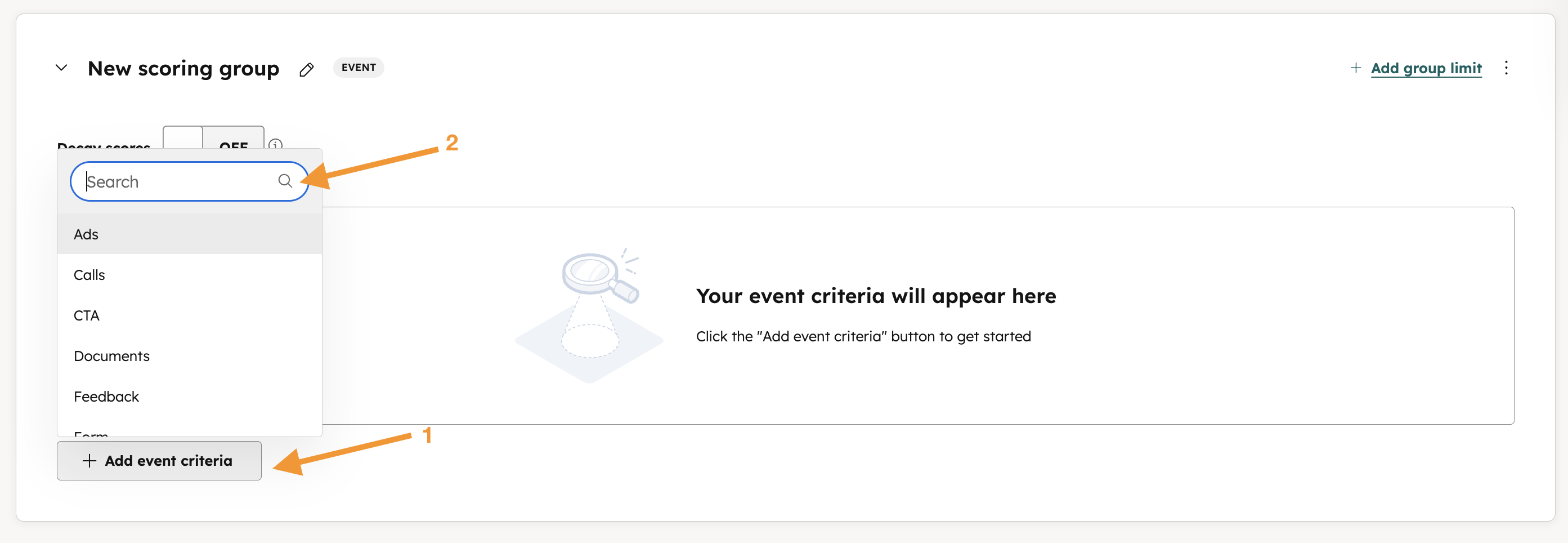
To select an event criteria, click "Select event".
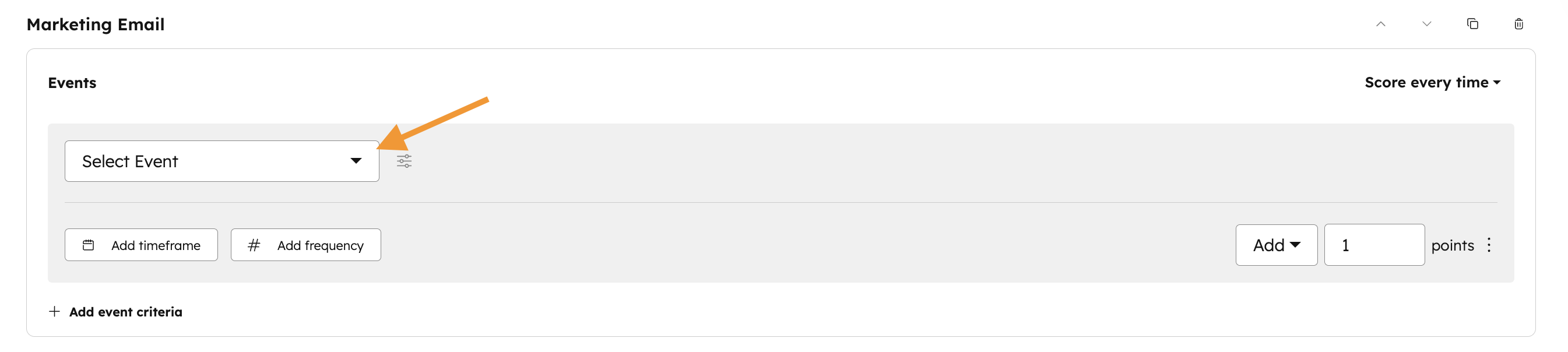
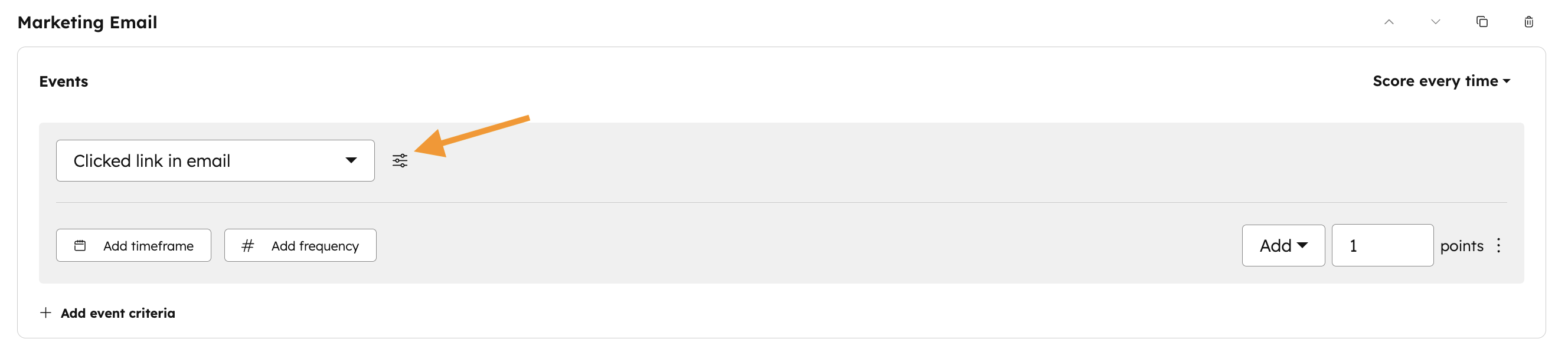
Click the filter icon and click "Select a property" to specify context of the event.
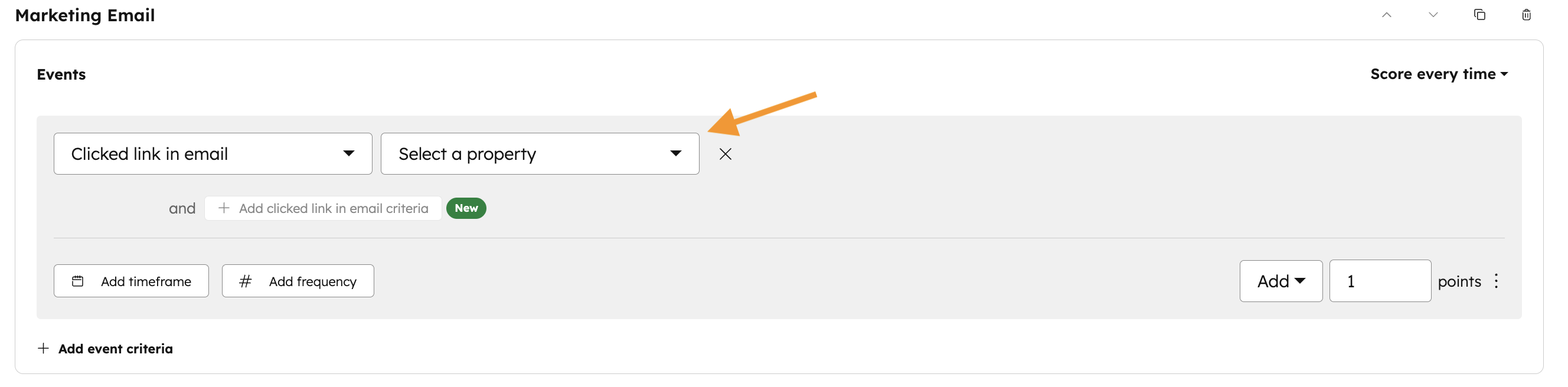
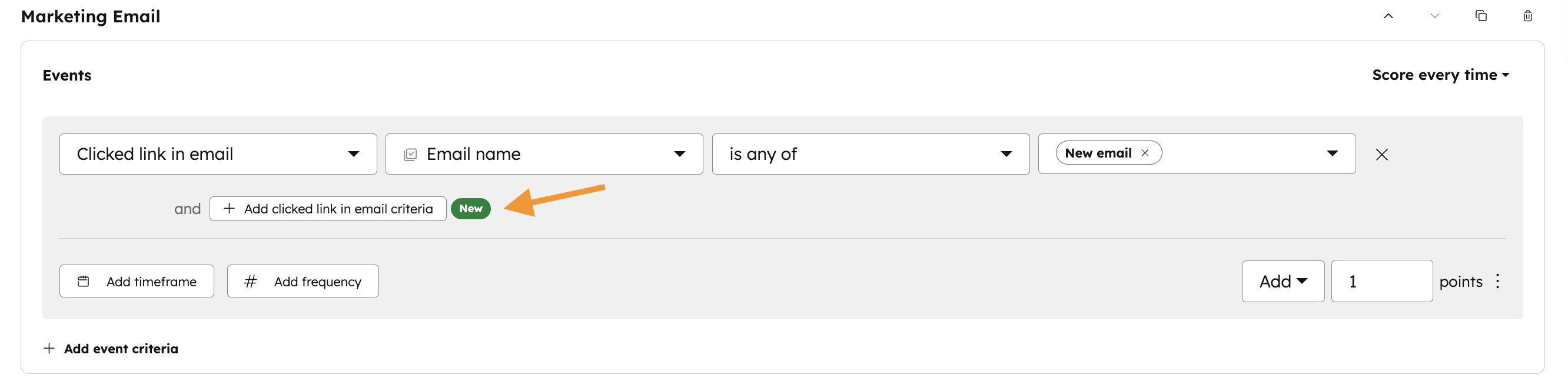
Fill out all values of the first specific context of the event, and then click "+Add [event criteria name] criteria" to add more context of the same event.
After adding all the context for the specific event, update the number of points awarded for the conditional rule.
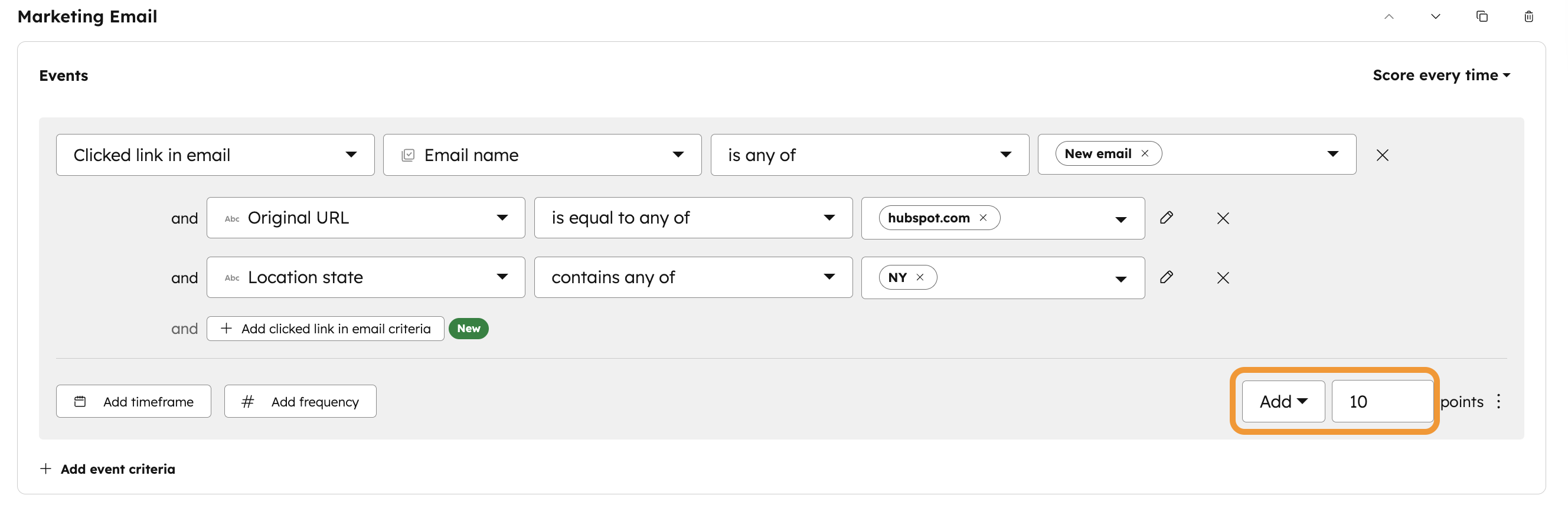
For this example, now a contact will receive 10 points only if they clicked a link in an email with:
- Email name is any of "New email"
- AND the original URL of the link clicked is equal to any of "hubspot.com"
- AND their Location State where the contact clicked from contains any of "NY".
Note that this is a single event at a single point in time where all of these specific criteria must be met for points to be awarded.
Note:
- Segment (List) Membership and Workflow Enrollment are still available for creating complex conditional scoring rules, such as creating conditional scoring rules across two separate events occurring.
Who gets it?
Professional Customer Platform, Enterprise Customer Platform, Marketing Hub Professional, Marketing Hub Enterprise, Sales Hub Professional, Sales Hub Enterprise



.png?width=193&name=jos%20(1).png)