What is it?
The quotes rules engine helps make sure every quote is accurate while it’s being built. It automatically applies the right rules for product setups, pricing, discount limits, and quantities so reps don’t have to remember every little detail.
As reps build a quote, the system catches issues in real time and gives instant feedback. It can guide them with helpful context, block invalid quotes, and recommend other pricing and packaging alternatives. That means teams can move faster, make fewer mistakes, stay compliant, and create a smoother buying experience.
The rules engine supports four main types of rules to help guide reps and ensure quotes are accurate:
- - Incompatibility rules – prevent products that should never be sold together from being added to the same quote
- - Compatibility rules – ensure products that must be sold together are included
- - Pricing rules (min/max thresholds) – enforce discount limits or pricing boundaries to protect margins
- - Quantity rules (min/max thresholds) – control minimum or maximum quantities and trigger requirements based on volume
Here are a few examples of how these rules work in practice:
- - Ensure Product A is always sold with Product B
- - Prevent Product C and Product D from being sold together
- - Limit the maximum discount for a line item
- - Recommend adding Product B when Product A is included
- - Require Product E when the quantity of Product A exceeds 10
Quote rules can be used with any quote property or property associated to the quote, which teams flexibility into the creation of their rules.
Available in Commerce Hub Enterprise.
Loom Recordings:
Quote Rules - Product Rules Block Scenario
Quote Rules - Upsell Recommendation Scenario
Why does it matter?
A quote rules engine ensures pricing and packaging are always accurate so reps can create quotes confidently and error free.
How does it work?
Navigate to Commerce Quotes --> Settings --> Rules
- - We recommend starting with Breeze
- - Type in a natural language text into breeze
- - It'll take you into the Rule Creator UI
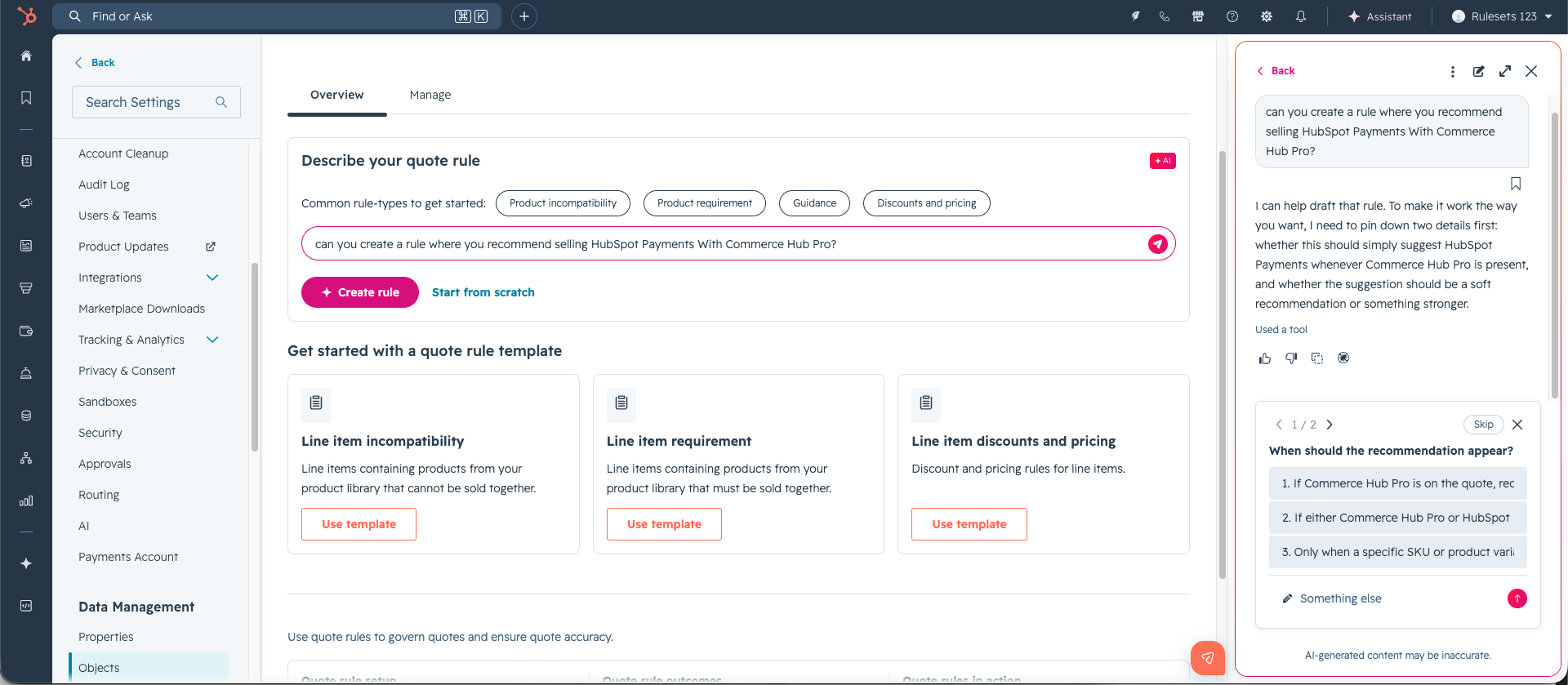
Once the rule is created
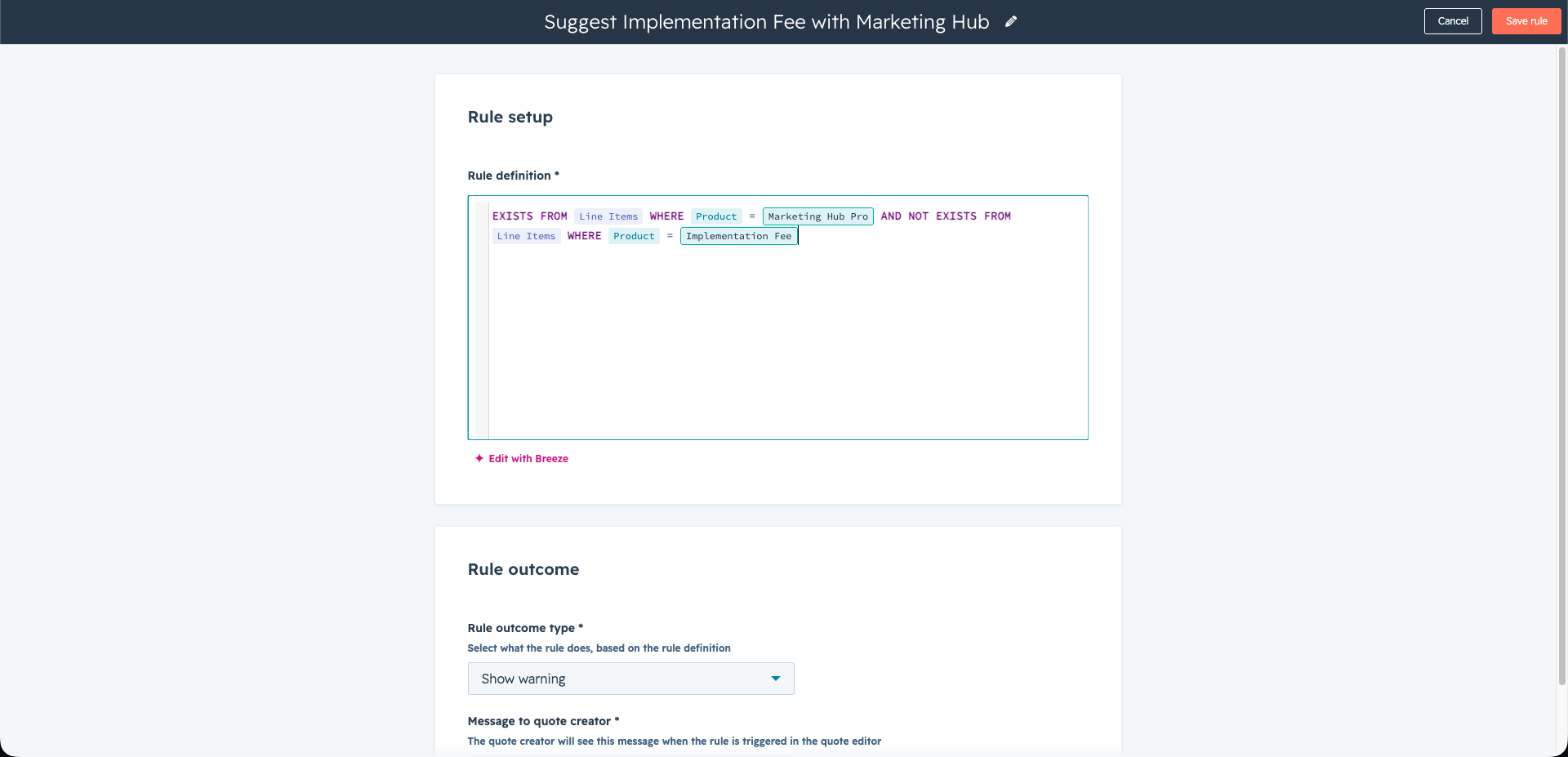
- - You'll be prompted to open the editor field.
- - Choose an outcome:
- - Block: Prevents the quote from being published when the rule is violated.
- - Warn: Sends a soft alert to the rep, but still allows the quote to go out.
- - Add a message for the quote creator with more context about the rule.
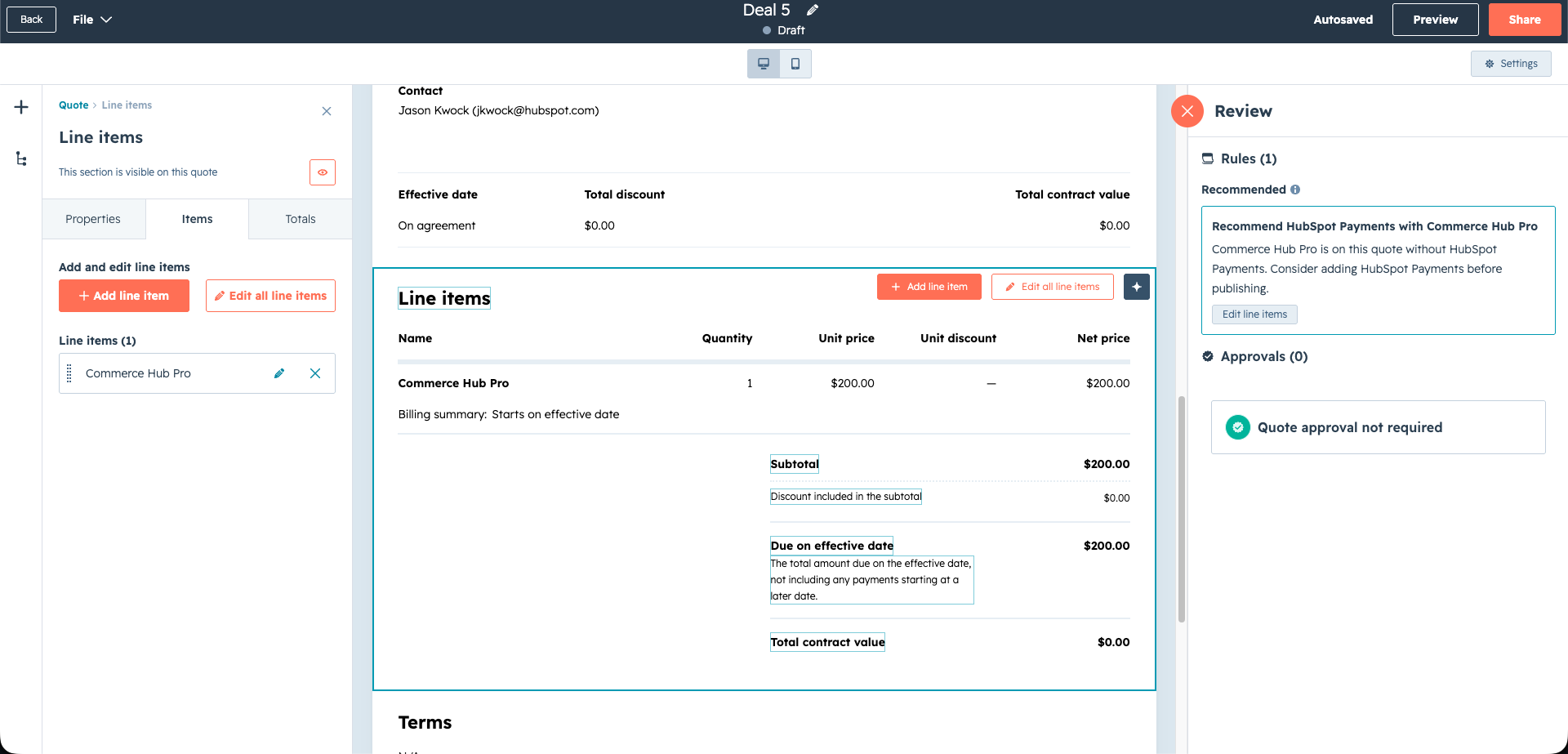
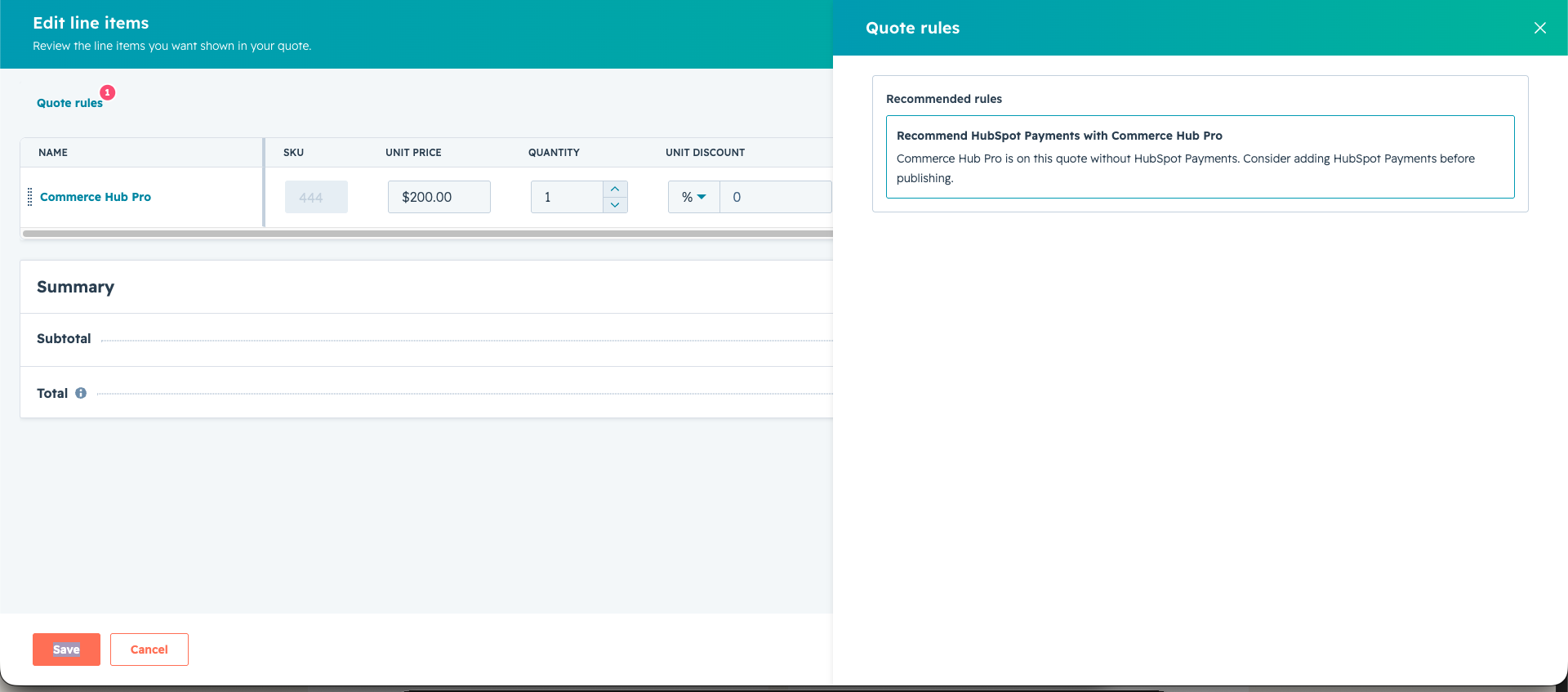
What the Quote Creator will show:
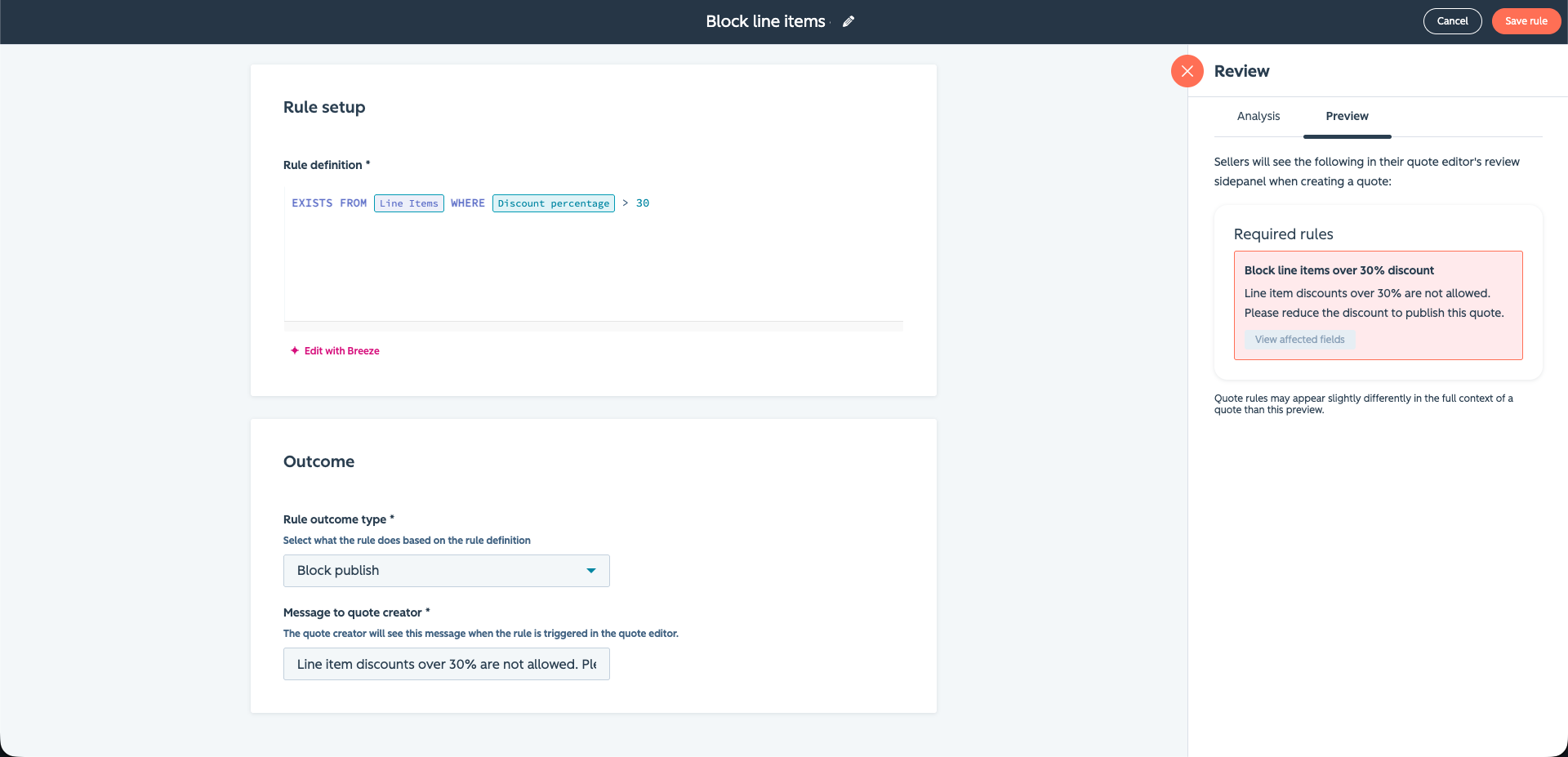
Rule violations appear in the side panel and line item editor as the rep builds the quote. Once addressed, the alert disappears.
Testing Mode
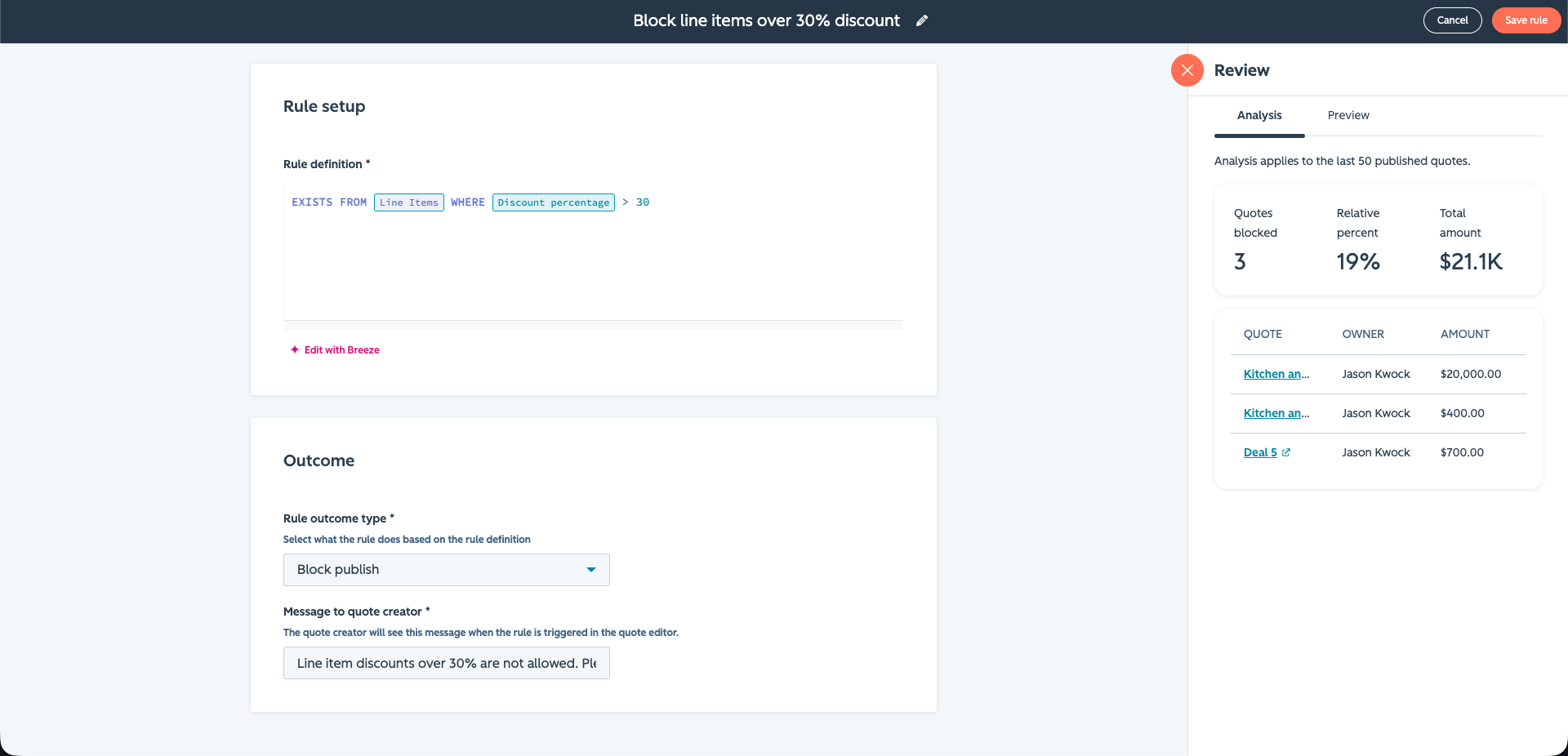
Admins can see how a rule would impact previously published quotes, including how many quotes are affected and who owns them. This helps them understand the impact before enabling the rule. They can also preview exactly how a rule will appear to sellers during quote creation, making it easy to validate the experience before publishing.
Who gets it?
Commerce Hub Enterprise



.png?width=193&name=jos%20(1).png)