What is it?
Attaching a screenshot to a chat has never been easier. With the click of a new button in the chat widget, your visitors on modern desktop and tablet can quickly take and attach a screenshot to their conversation with your agents.
Why does it matter?
Support agents can't assume that all visitors using chat are able to quickly take a screenshot for use in support asks. By shortening the journey from asking for a screenshot to attaching it to a message, friction and frustration can be reduced.
How does it work?
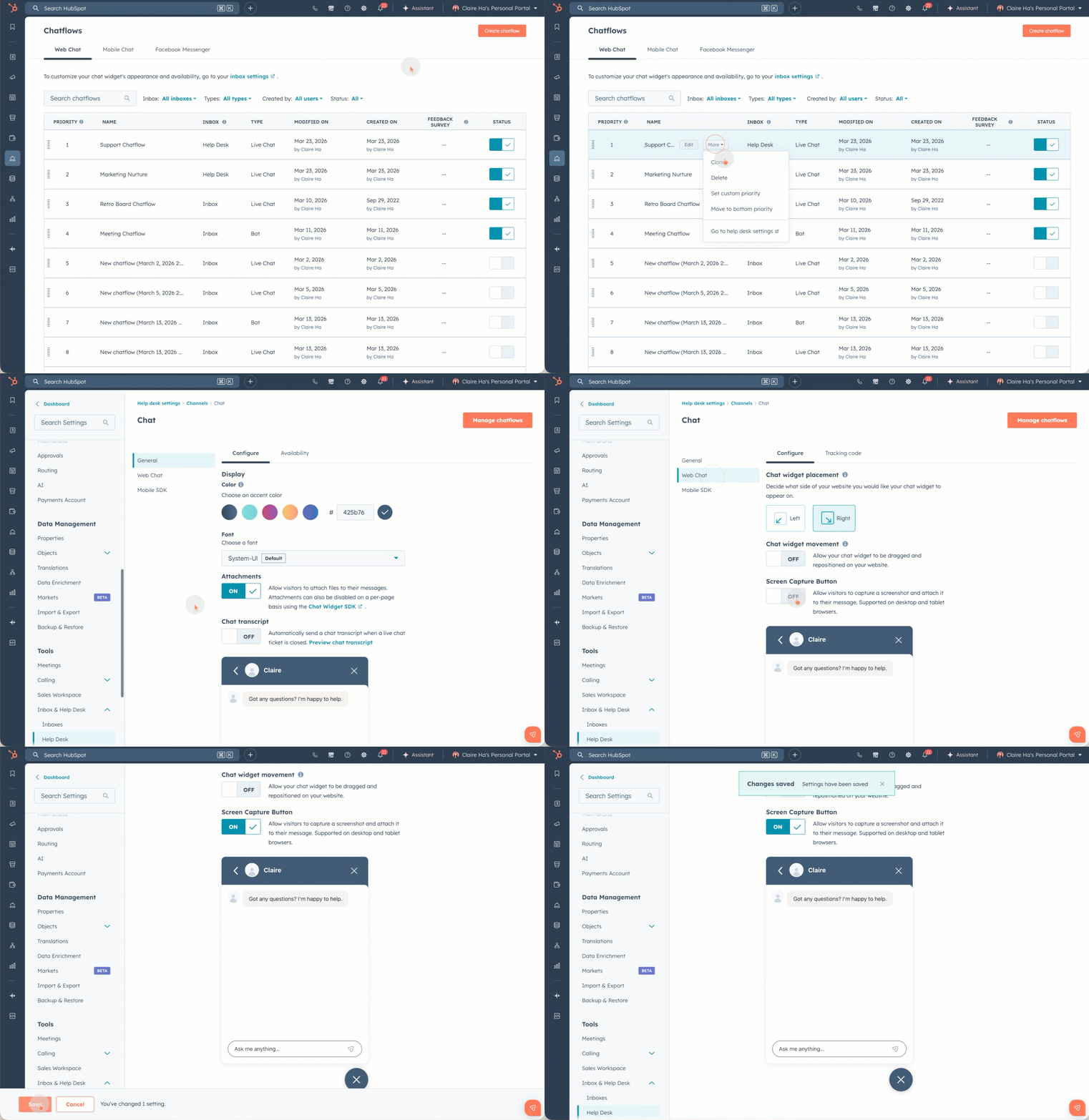
- - The setting lives within HelpDesk and Inbox settings. The fastest way to get there is to:
-
- - Go to Chatflows
- - Hover over a chatflow
- - Click more
- - Select Inbox or Help Desk settings
- - From settings, navigate to Web Chat
- - Turn on the Screen Capture Button setting
-
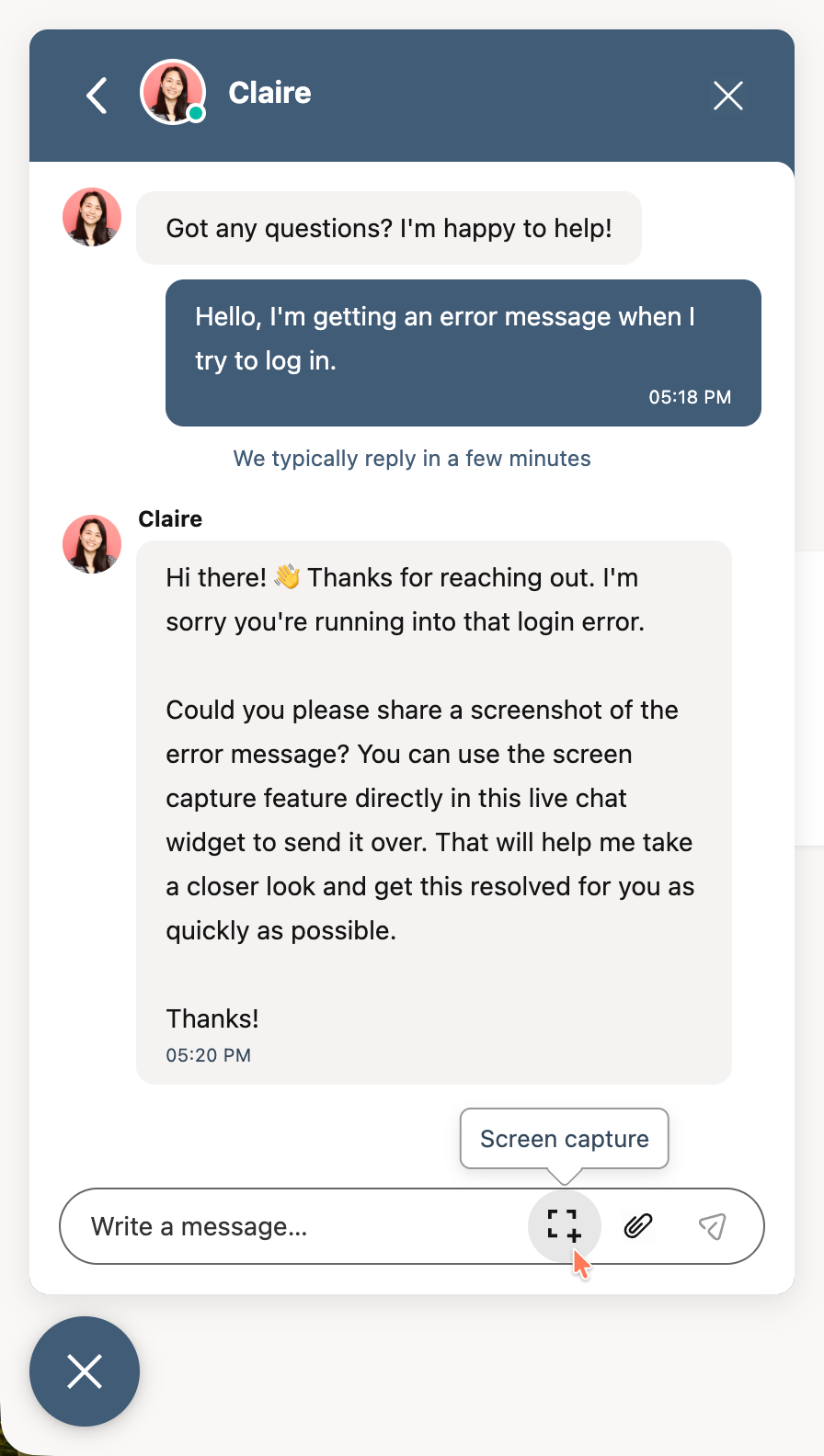
- - Once a visitor starts a new conversation in the chat widget, a new icon will appear for desktop and tablet users that allows for quickly adding a screenshot as an attachment to the conversation.
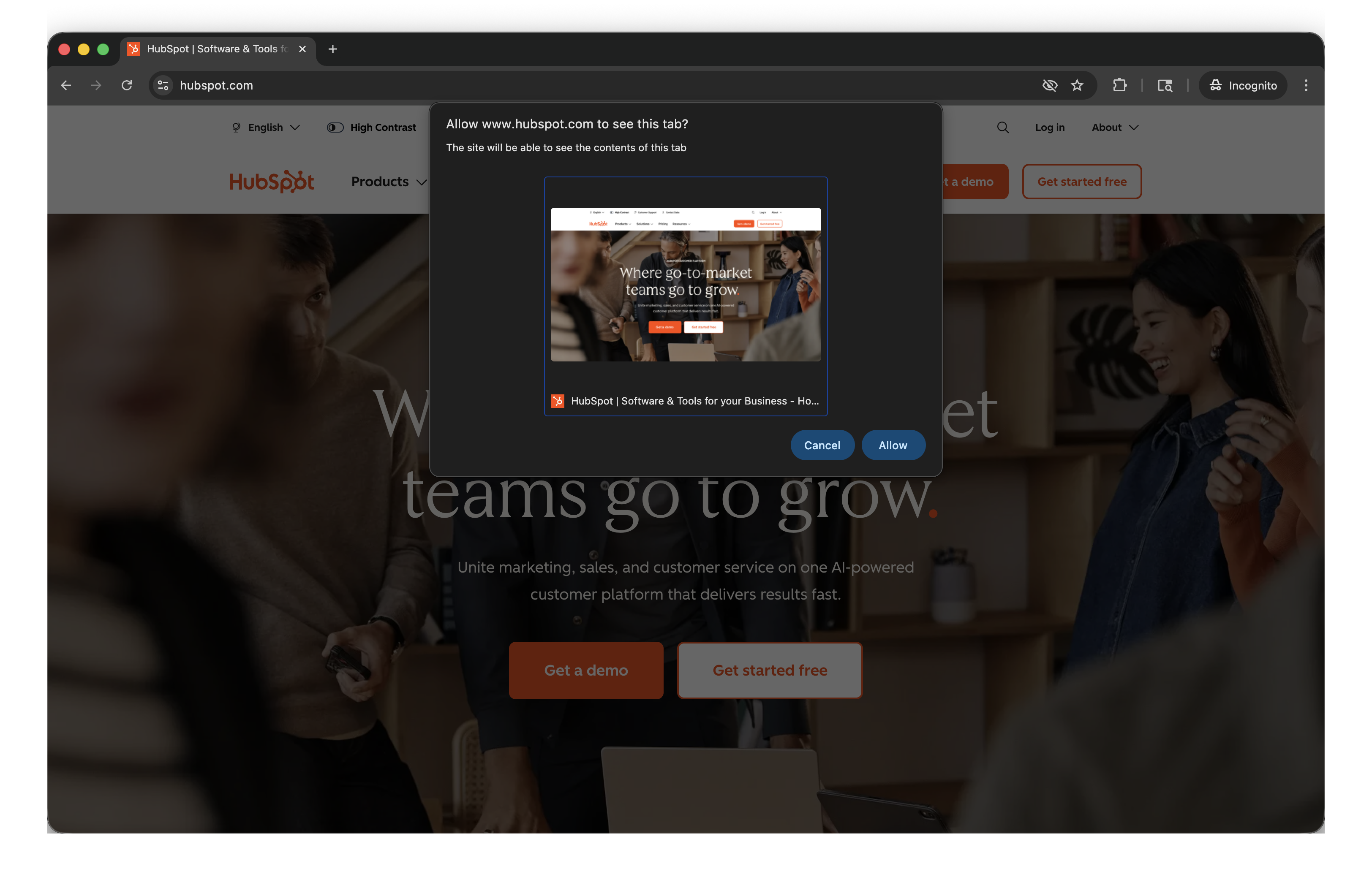
- - When the icon is clicked, built-in browser functionality will prompt for the user's permission before taking and attaching the captured screenshot to chat.
How to turn the setting on:
How it looks for your website visitors:
Who gets it?
All hubs and tiers


.png?width=193&name=jos%20(1).png)