What is it?
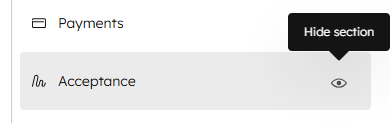
Sales Reps and Sales Admins can now hide the "Acceptance" section in CPQ quotes when "print and sign" is selected as a signature method.
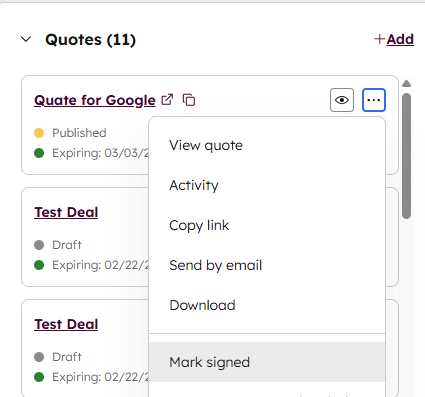
You can still mark the quote as signed manually from the Quotes index page and quotes sidebar cards.
This enables you to use quotes for proposal use cases, where you want to present your offering but do not require a signature from buyers.
Why does it matter?
Sales teams want to use quotes for both proposal and agreement/contract use cases. By allowing Acceptance to be hidden, you can better use quotes as a proposal document.
How does it work?
Within quotes and quote templates, you can hide the Acceptance sentence from displaying by:
- Opening the editor and selecting the "Acceptance" section
- Changing the acceptance method to "Print and sign"
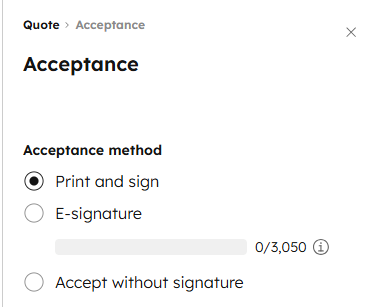
- Going to the sections menu and clicking the eye icon to hide the section
When Acceptance is hidden, you can still mark the quote as signed by going to the "Actions" dropdown from the Quotes Index or quote sidebar card and selecting "Mark as signed."
Notes:
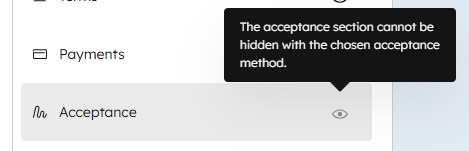
- If the Acceptance section is hidden, but the acceptance method is changed to "E-signature" or "Accept without signature" afterwards, the Acceptance section will automatically be shown.
- The Acceptance section cannot be hidden if "E-signature" or "Accept without signature" are selected.
-
Who gets it?
Commerce Hub Professional, Commerce Hub Enterprise



.png?width=193&name=jos%20(1).png)