What is it?
Customer mapping creates a reliable, lasting connection between your HubSpot contacts and companies and your customers in QuickBooks Online or Xero — so invoices and payments always sync to the right customer, even when names or emails change. You choose how records should map, review and confirm the matches, and manage them anytime from one place.
Why does it matter?
When your sync relies on matching by email or name, everyday changes break it: a customer updates their email, a contact has no email at all, or someone new gets added — and suddenly invoices sync to the wrong place, create duplicate customers, or fail outright. Cleaning that up is manual and slow.
Customer mapping solves this with a stable connection that holds even when details change. Bill any contact at a company and the invoice lands on the right customer in your accounting system — every time.
This public beta works in both directions (inbound, outbound, and bi-directional syncs) and supports both B2B and B2C businesses, so it fits how you actually invoice — whether you bill companies, individual people, or both. And because your mappings now decide where invoices and payments sync, contact sync is turned off and hidden once you set up mapping — you no longer need it, and it can't route data to the wrong customer.
How does it work?
Watch demo here!
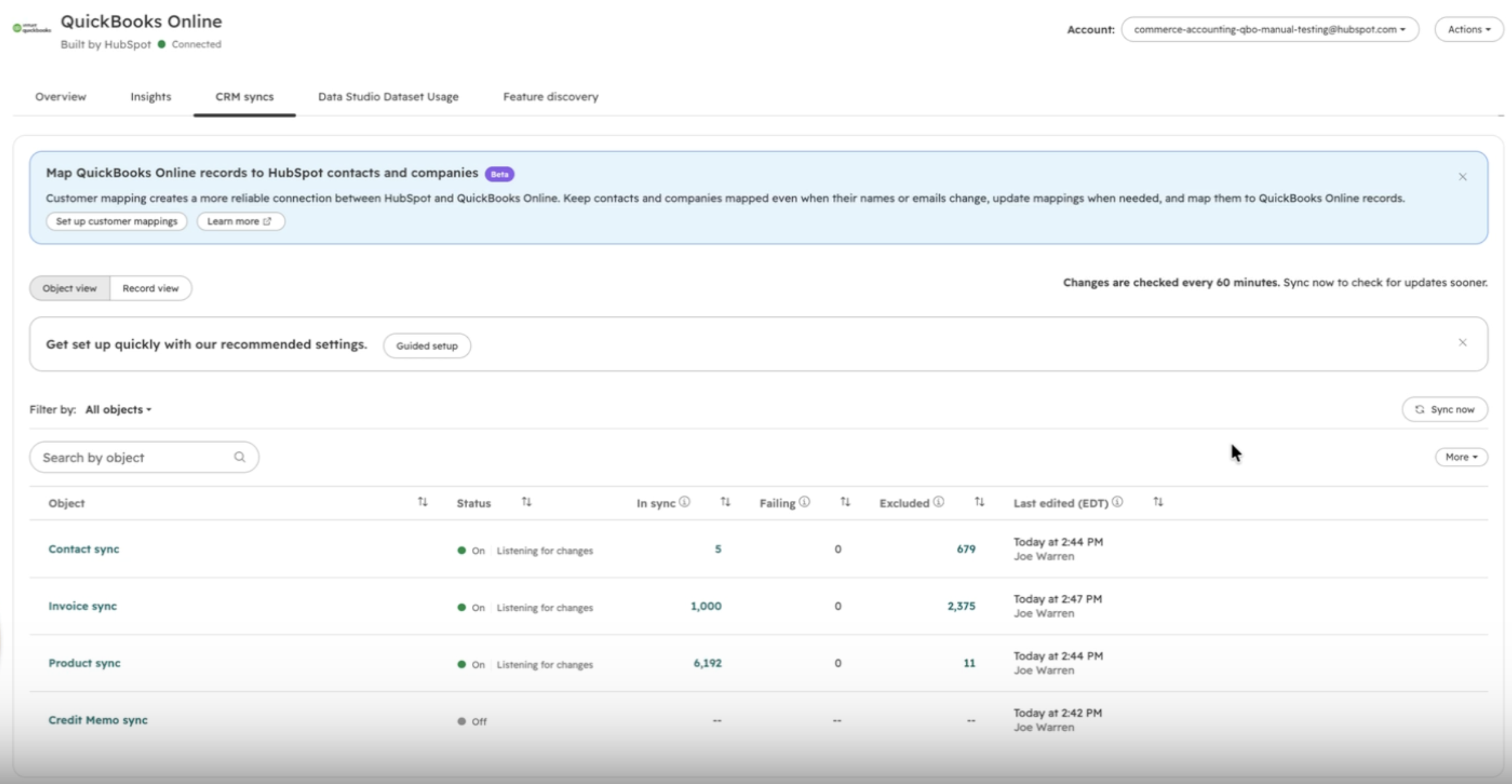
- - Start setup. Open the QuickBooks Online (or Xero) app in HubSpot, go to the CRM syncs tab, and select Set up customer mappings in the banner.
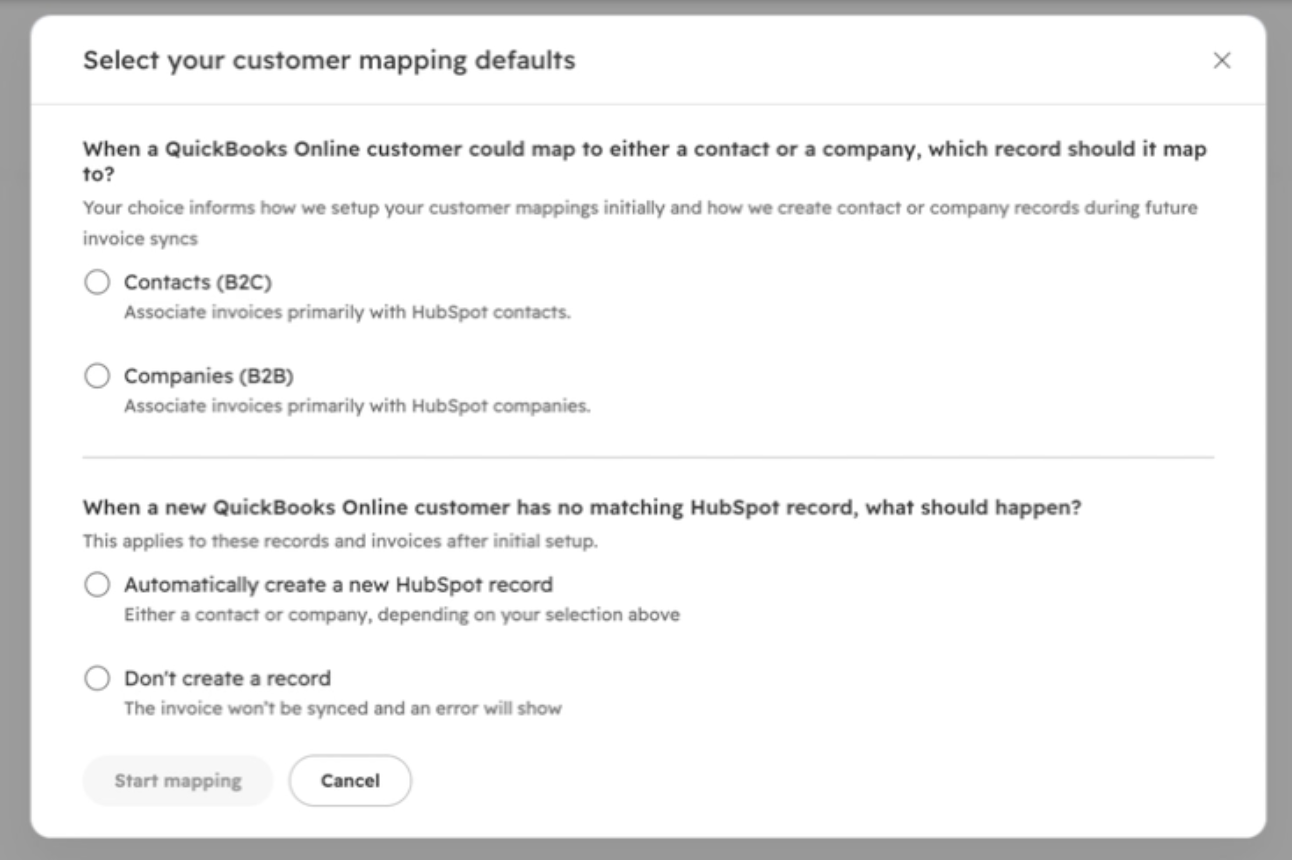
- - Choose your defaults. Tell HubSpot how to map customers that could match either a contact or a company — Contacts (B2C) or Companies (B2B) — and what to do when an accounting customer has no matching HubSpot record: automatically create one, or leave it unmapped (the invoice won't sync and an error will show). Then select Start mapping.
- - Generate mappings. HubSpot matches your accounting customers to HubSpot contacts and companies and shows progress as it works. You can leave the page and you'll get a notification when it's done. Nothing syncs yet.
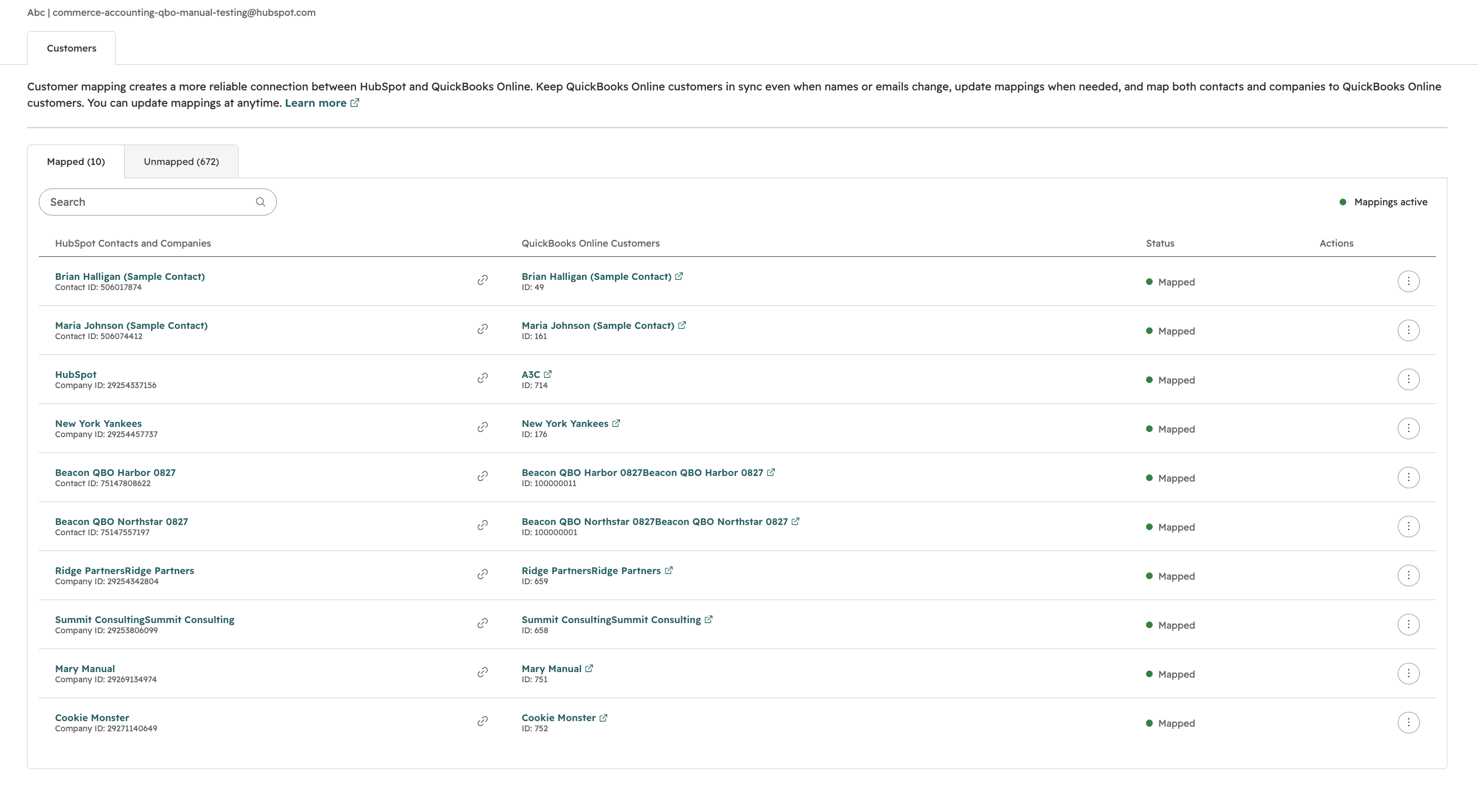
- - Review & confirm. Check the mapped and unmapped records, remap anything as needed, and select Confirm mappings. Syncing stays paused until you confirm.
- - Contact sync turns off. Once you confirm, customer mapping takes over: contact sync is disabled and hidden on the CRM syncs page, and your mappings now control where invoices and payments sync — in both directions.
- - Manage anytime. A dedicated Mappings page lets you review mapped and unmapped customers, search, and remap whenever you need. Unmapped records are shown for reference — no action needed unless you invoice those customers later.
Prerequisites
- - You must have QuickBooks Online or Xero connected via DataSync.
- - Supports inbound, outbound, and bi-directional invoice syncs, and both B2B and B2C use cases.
- - One accounting connection only: multiple QuickBooks Online or Xero accounts (multi-tenant) on the same portal isn't supported.
- - One accounting system at a time: having both QuickBooks Online and Xero connected at once isn't supported.
- - Public beta — eligible accounts can turn it on themselves from the CRM syncs banner.
Who gets it?
All hubs and tiers



.png?width=193&name=jos%20(1).png)