What is it?
We've made an update to bring more transparency to lead scores that include negative values. Check out this quick 🎥 video summary + demo to learn more!
What's changing: Scores that calculated to a negative value but displayed as 0 will now show the actual negative number and be used correctly in combined score calculations.
- Display: If a lead had a score of 0 that was actually negative (below 0), we will now show that actual negative number.
- Example: A contact receives -30 points for fit, it will now show as -30 vs 0.
- Calculation: If a lead had a combined score that included negative fit and/or engagement scores, we will now add the negative scores into the total instead of treating them as 0 so the score is not inflated.
- Example: A contact receives -30 points for fit and 70 points for engagement.Previously: -30 fit was rounded to 0, shown in display and used for calculation for combined score0 Fit + 70 Engagement = 70 combined (inflated)Now: -30 fit displays as -30 and is used in calculation correctly-30 Fit + 70 Engagement = 40 combined (more accurate)

What's NOT changing: All other scores that are truly 0 or positive (greater than 0) remain the same.
Why does it matter?
Previously, subtraction rules decreased a score to represent a bad fit or disengagement, but the final score never fell below zero even if the true score was less than zero. While keeping scores between 0 and 100 (or a higher limit) made interpretation simpler, it created two problems: you couldn't differentiate between negative scores rounded to zero versus a true zero score, and combined scores were inflated by not using negative values in the sum between fit and engagement scores.
Now you can see a broader range of which leads are truly a bad fit or disengaged, along with a more accurate combined score value that takes into account negative fit or negative engagement. This leads to more accurate prioritization of leads by both users and automations referencing the score.
How does it work?
Check out this quick 🎥 video summary + demo!
Steps:
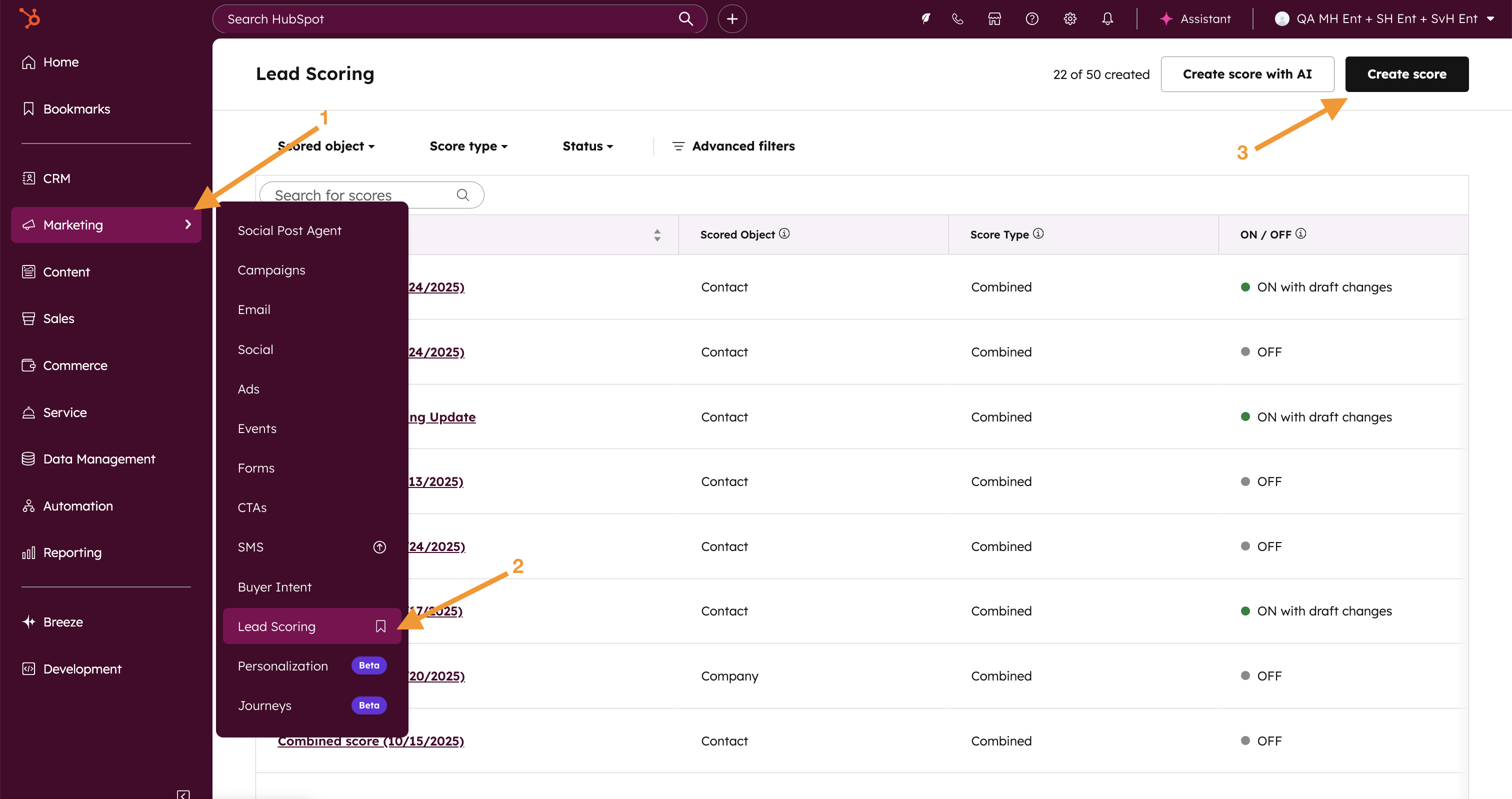
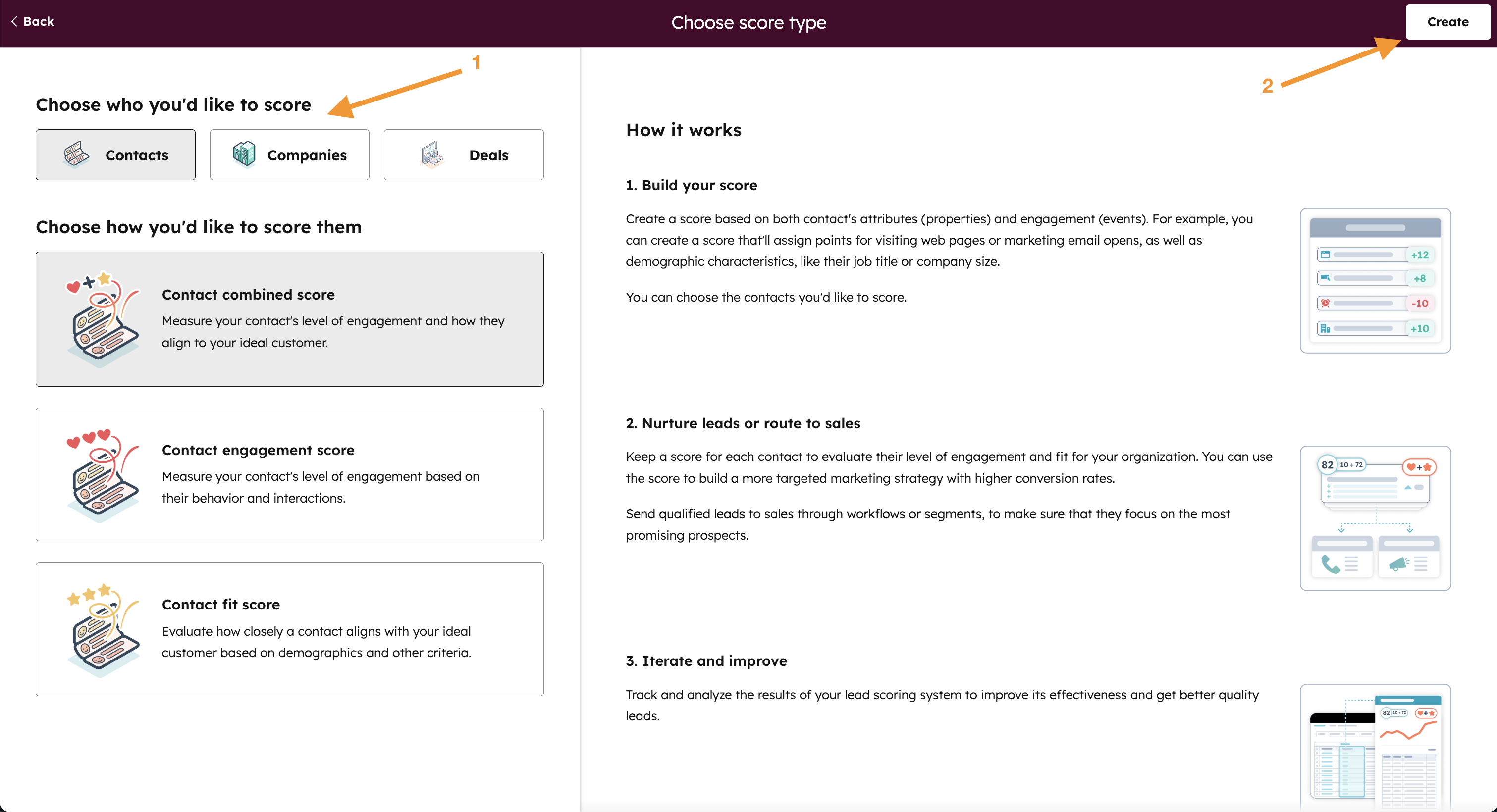
1. In the Global Navigation Bar on the left, go to Marketing > Lead Scoring. Once in the Lead Scoring app, either create a new score by clicking "Create score" or click "edit" next to an existing score.
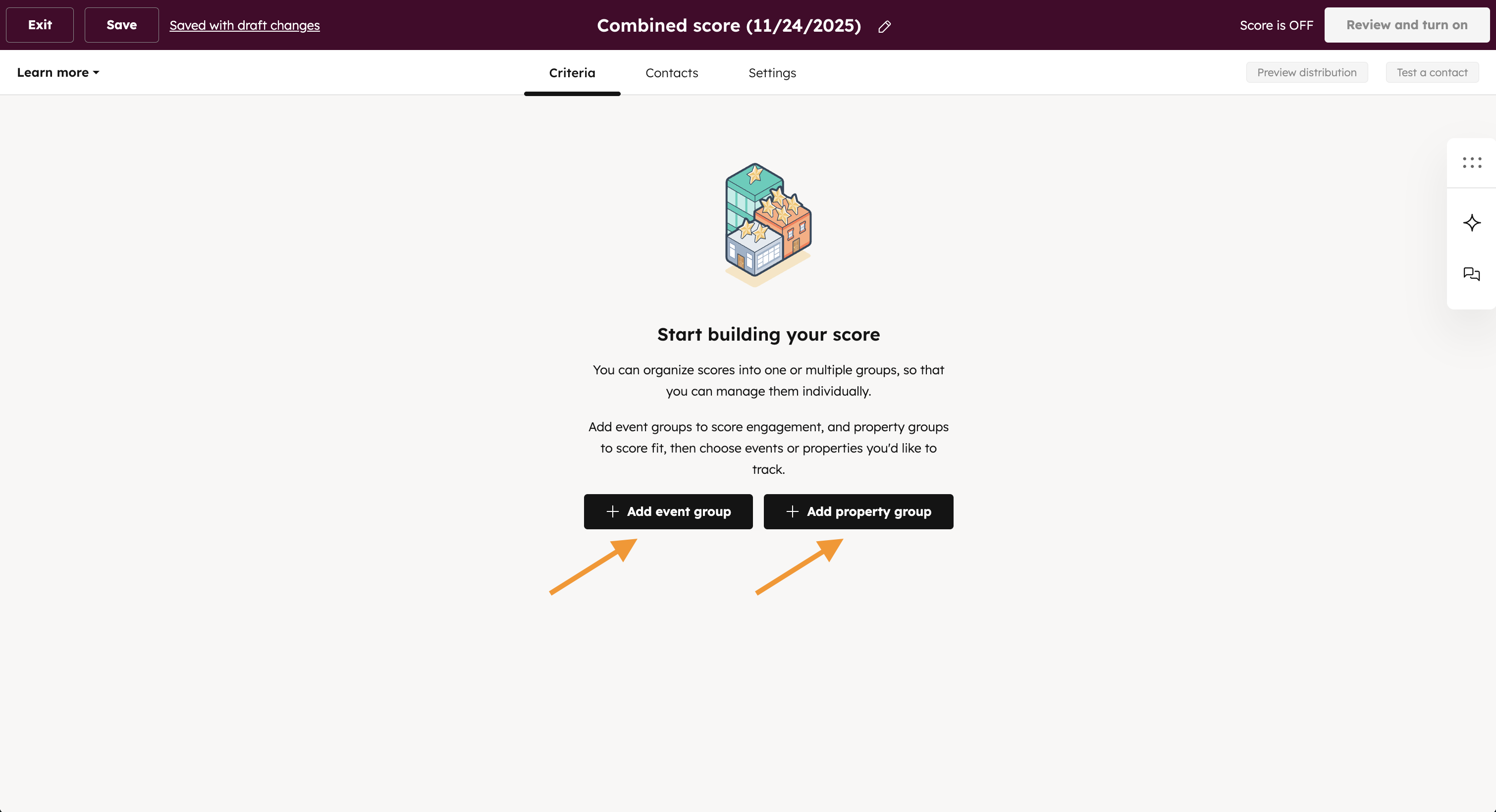
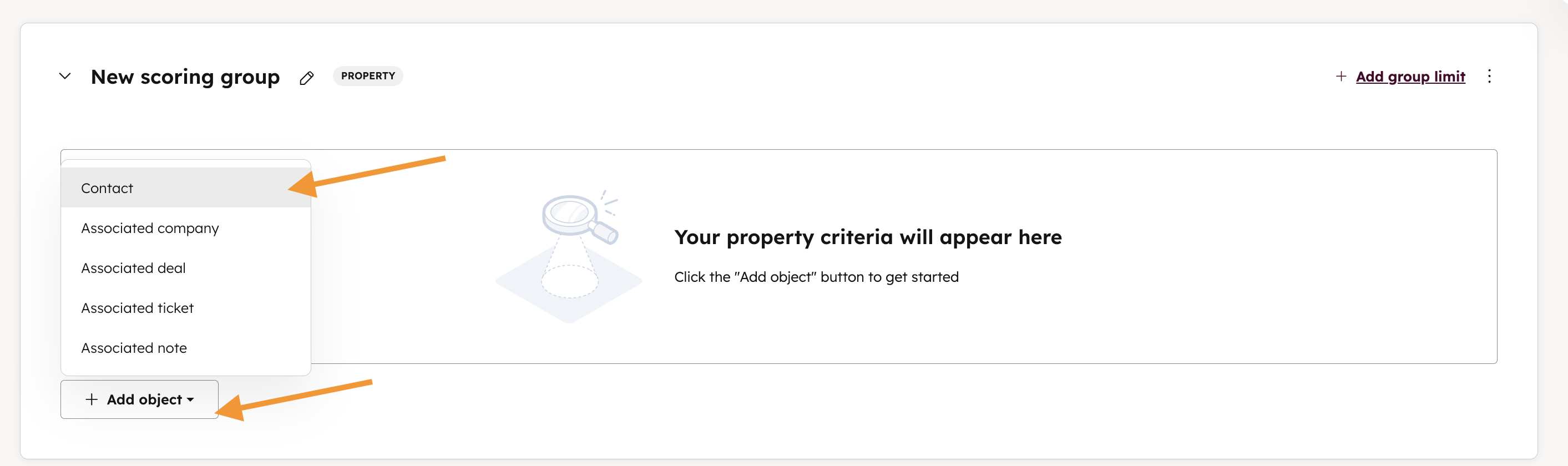
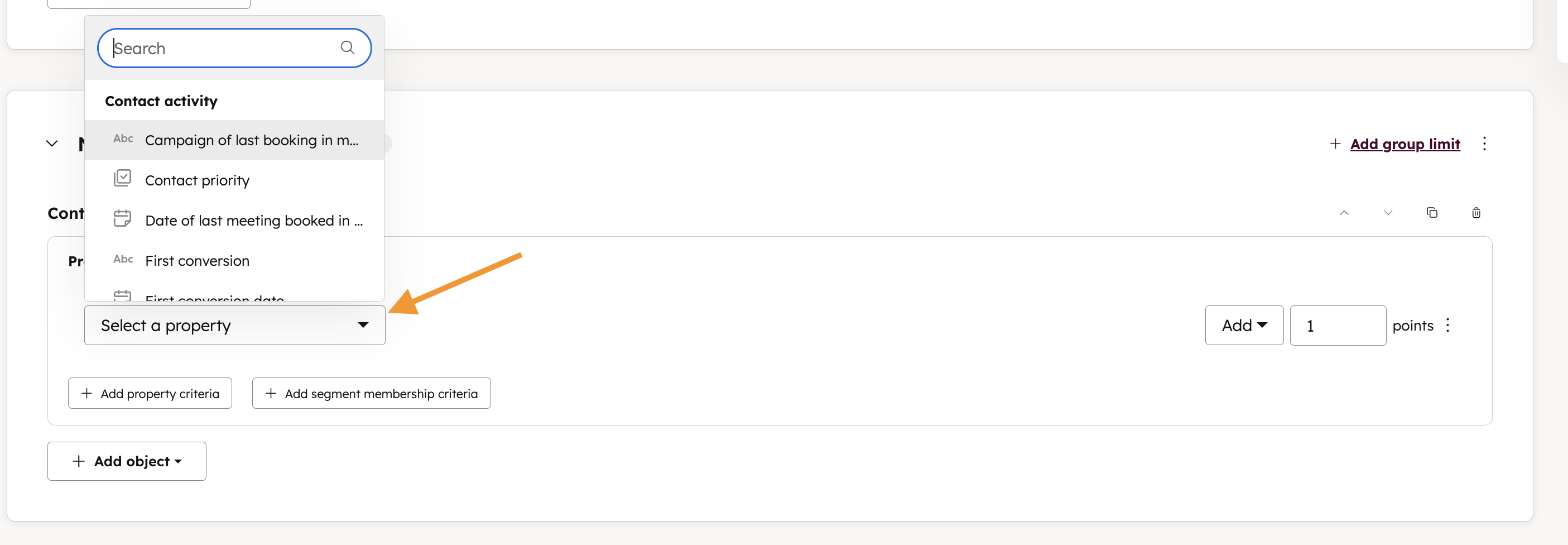
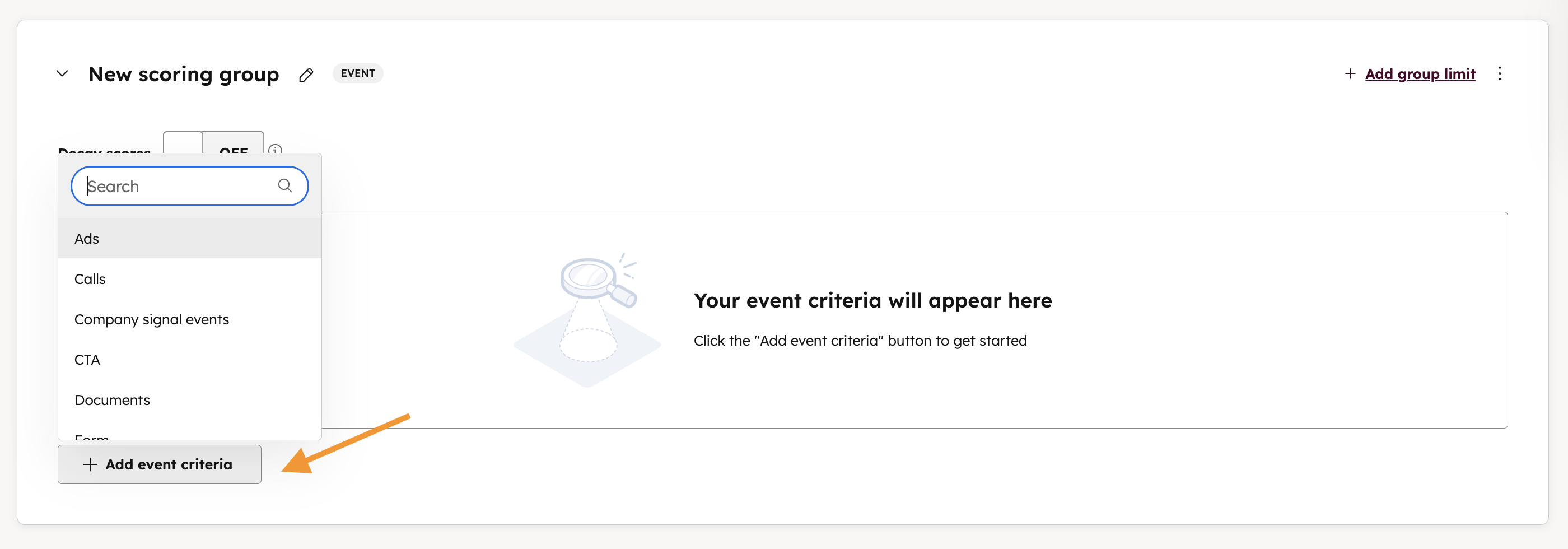
2. Build your score with both addition and subtraction rules. To create fit rules, click “+ Add property group”, and then click “+ Add property criteria”. To create engagement rules, click “+ Add event group”, and then click “+ Add event criteria”.
For fit rules:
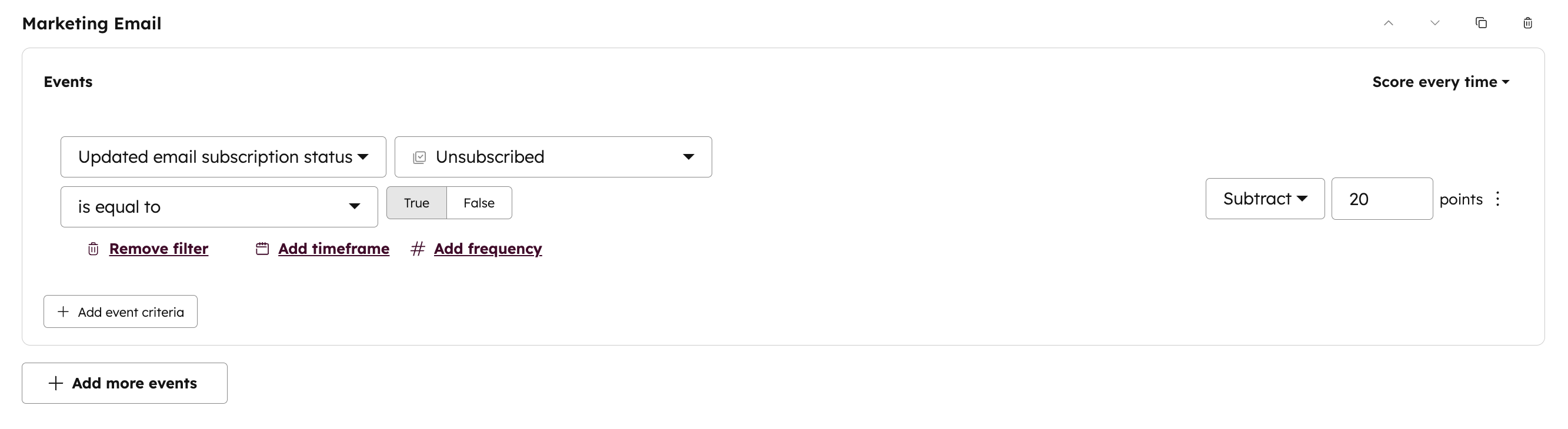
For engagement rules:
3. To create subtraction rules, click the dropdown next to “add” to change to subtract and set the point value.

Some examples of subtraction rules include:
- Subtract 30 points for job titles that indicate a poor fit.
- Subtract 20 points for unsubscribes, which indicates disengagement.
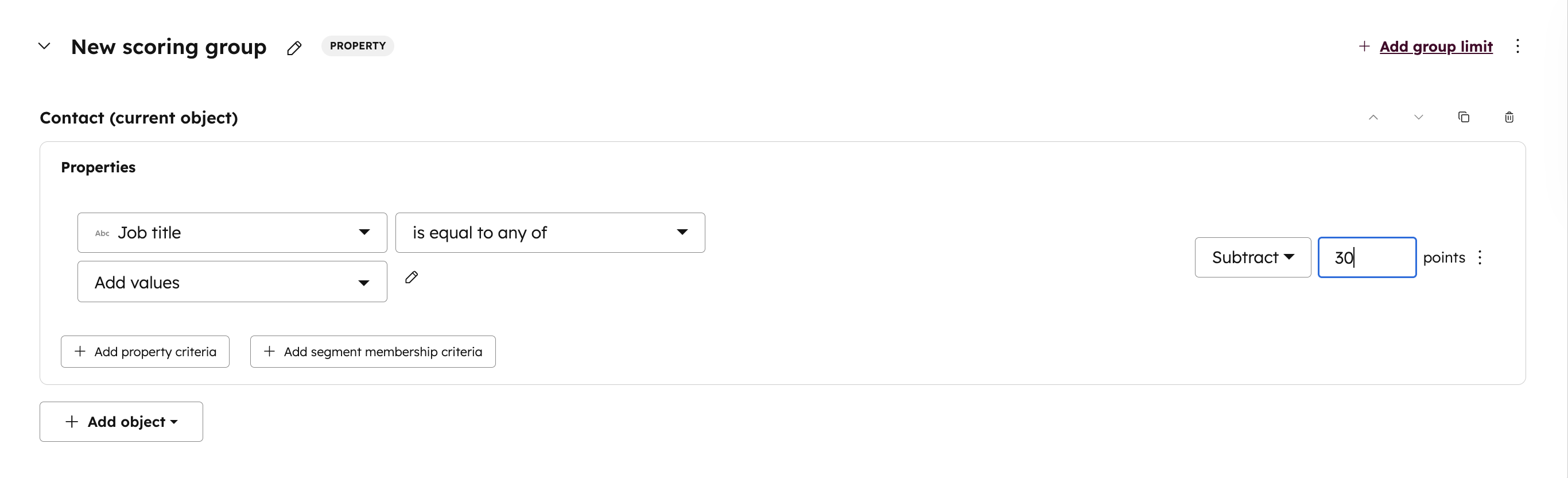
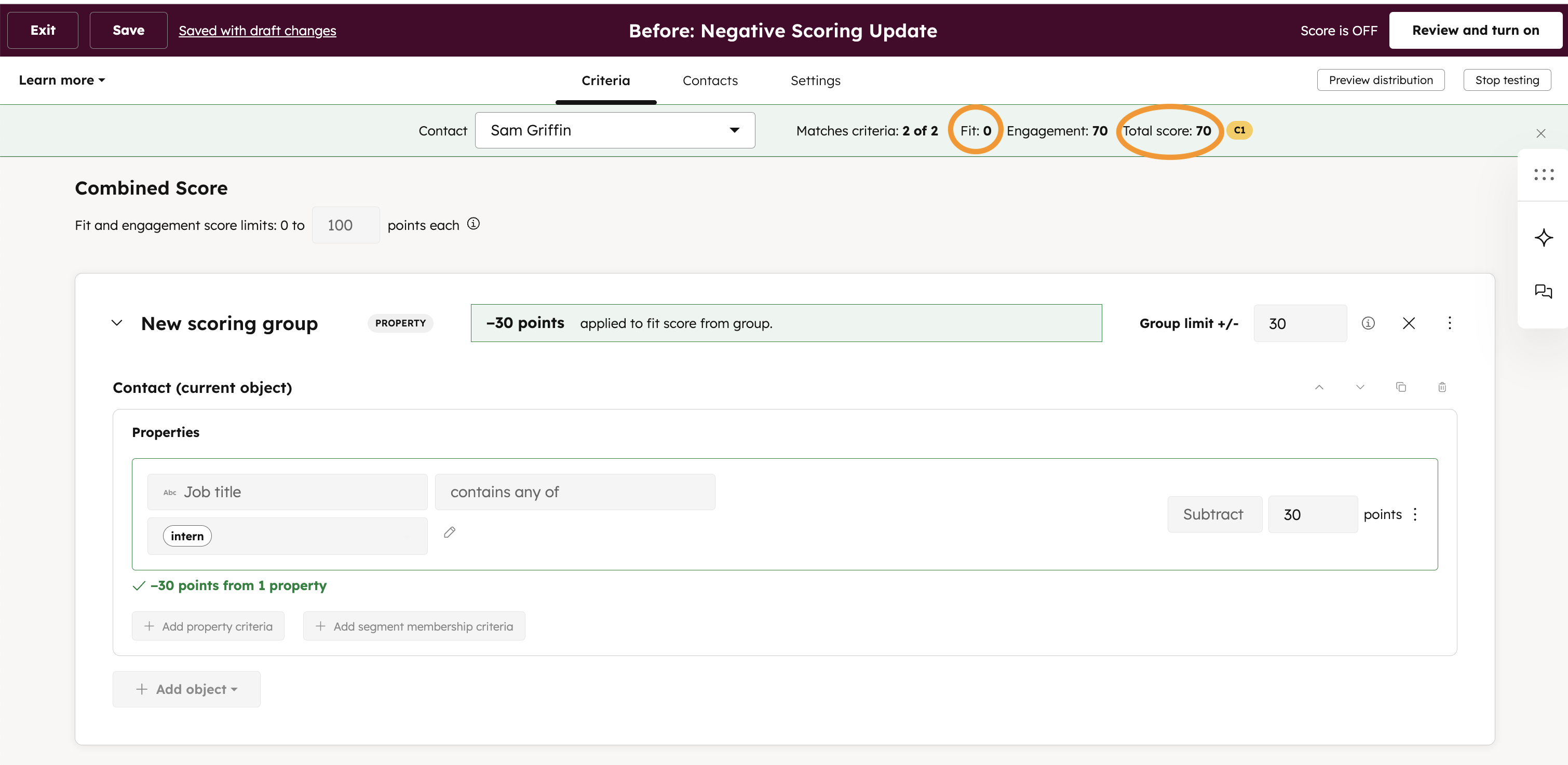
Here's an example of a combined score with a bad fit with good engagement. To see the calculation of a score, click "test a contact"/"test a company"/"test a deal".
Before this update:
A contact with -30 fit and 70 engagement would show as: Fit = 0, Engagement = 70, Combined = 70.


After this update:
The same contact now shows Fit = -30, Engagement 70, Combined = 40.
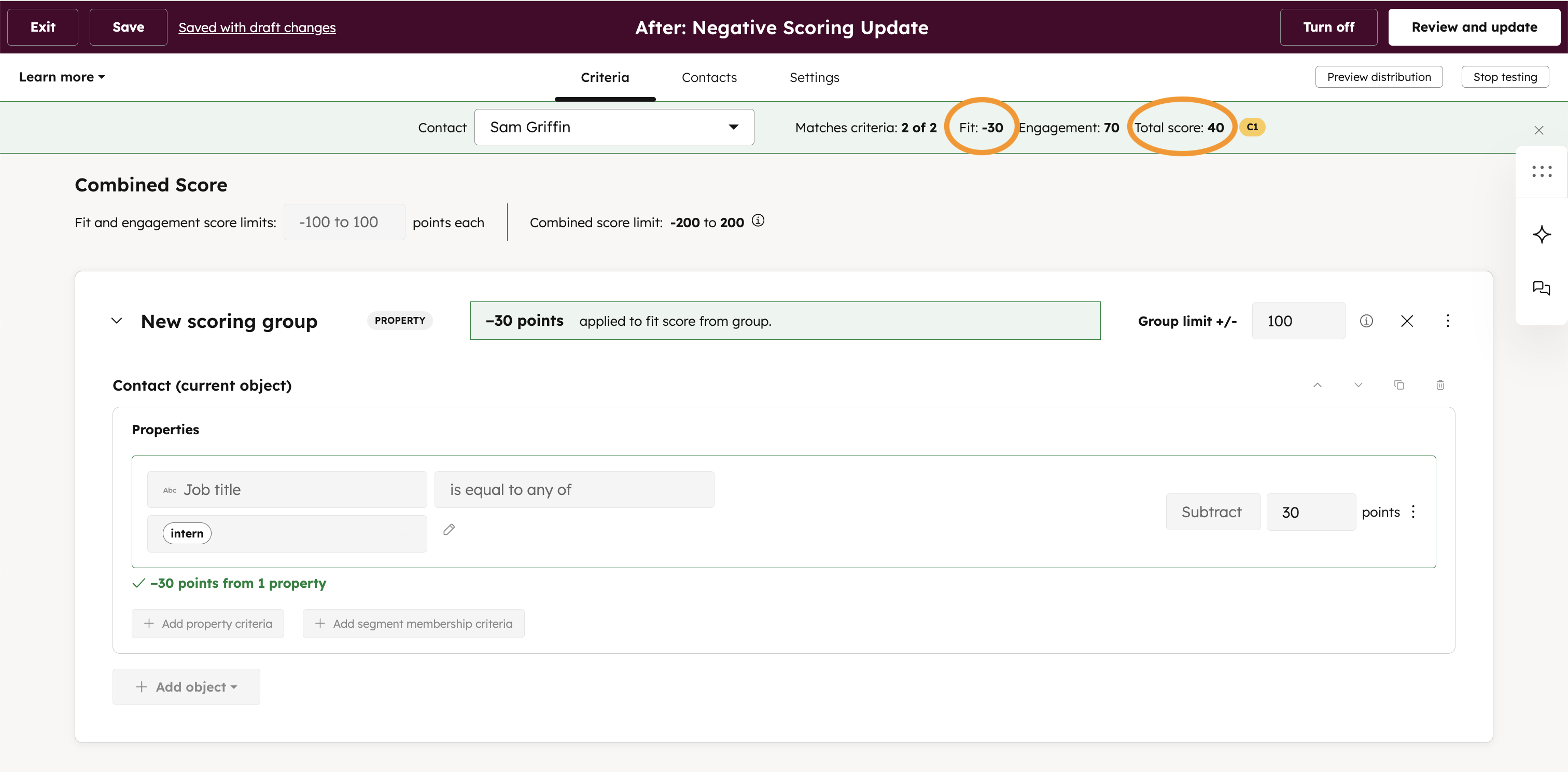

This combined score of 40 is more accurate than the previous 70 because it reflects the poor fit.
Notes:
- Impact: Only scores that were negative and rounded to 0 will be impacted. All future and historical scores that are rounded to 0 will now show its true negative value.
- Score limits: Scores can fall below zero to as low as the inverse of your positive score limit (i.e. if your score limit is 200, scores can go as low as -200).
- Group limits: Group limits can also go negative and are optional.
- Rules:
- You don't need to use subtraction rules—if you only use addition rules, your scores will always stay above 0.
- If you use subtraction rules with small enough values, scores usually won't decrease below zero.
- Thresholds: Thresholds work the same way as before except now include negative values.
- Display:
- Negative scores are now displayed in all areas where scores appear, including the score output properties, history card, distribution preview, and test a record.
Who gets it?
Professional Customer Platform, Enterprise Customer Platform, Marketing Hub Professional, Marketing Hub Enterprise, Sales Hub Professional, Sales Hub Enterprise



.png?width=193&name=jos%20(1).png)