What’s changed?
Note: For Action tab to suggest tasks and CRM updates please join the "Notetaker with Smart Deal Progression" public beta here.
What is it?
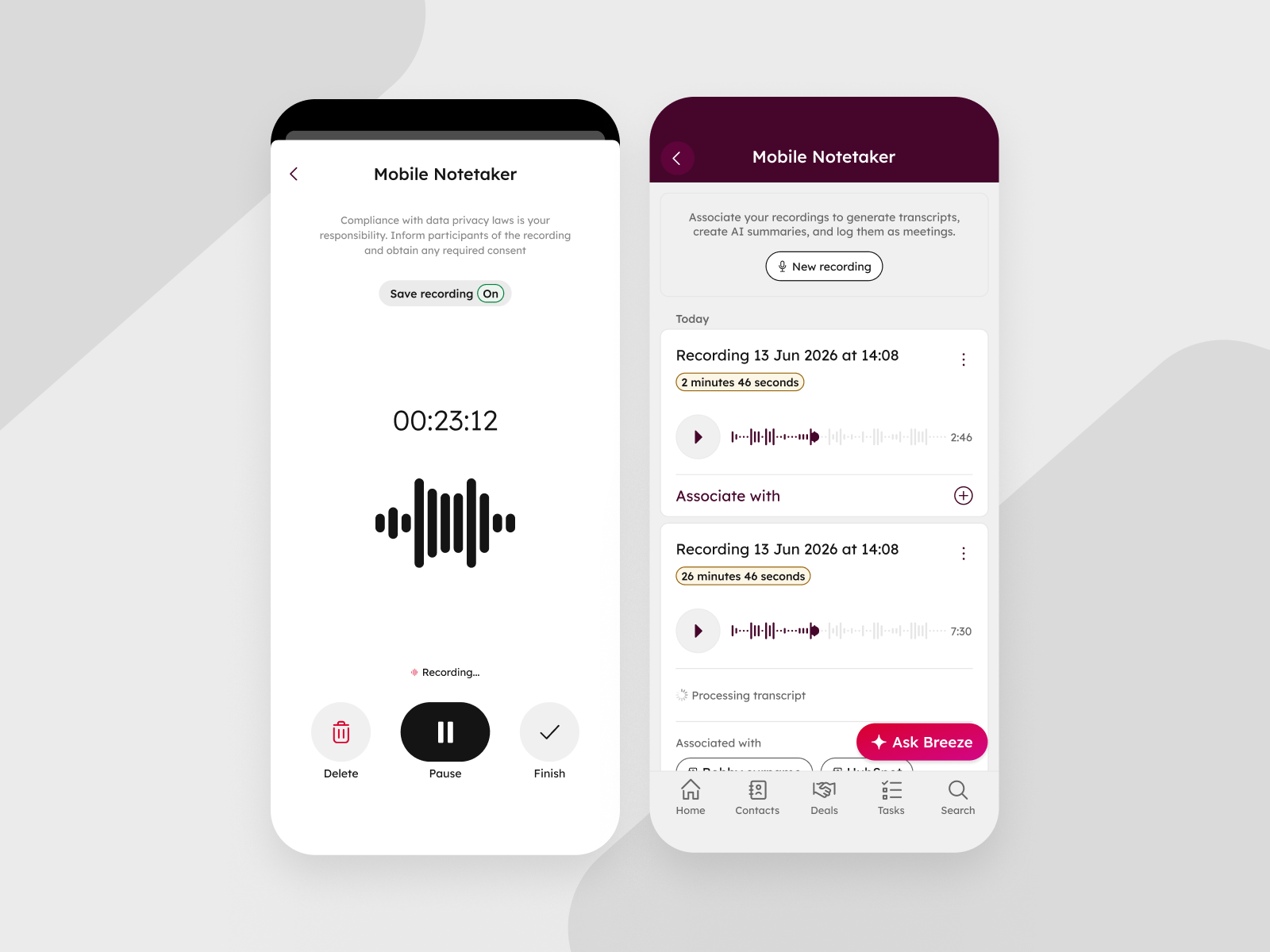
HubSpot mobile users can now start recording an in-person meeting or capture a post-meeting voice recording with one tap directly from the home screen, without first creating or locating a CRM engagement.
Reps can also record when they are offline and associate the recording with the corresponding meeting and CRM records once they are back online. A new Review & Action tab lets reps to review the AI summary, generate a follow-up email, replay the recording and transcript and accept or reject suggested CRM property updates,, all from their phone.
Why does it matter?
Field sales reps often join unplanned meetings with little time to prepare CRM records, requiring reps to find a record, create a meeting activity, and navigate to the recording action can delay the start of the meeting and risk losing valuable details. Afterward, they may also need to stop on the way back to their car and manually jot down notes while the conversation is still fresh.
With one-tap recording, reps can capture the meeting or record a quick post-meeting debrief instead of typing notes. They can associate the recording once they are back online, reducing pre-meeting setup and post-meeting admin.
This brings HubSpot closer to zero admin for sales reps, giving them more time to focus on customers, follow-ups, and selling. The Review tab also makes it easier to revisit commitments and key moments without returning to a desktop.
How does it work?
One-Tap Capture (Home Screen): Tap the new global capture button on your mobile home screen (top right microphone icon) to start recording immediately without any CRM pre-work. Recordings can now be saved by turning the corresponding setting on or off from the recording screen. The selection is remembered for future sessions.
Mobile Notetaker page: From the new 'Mobile Notetaker' page shown right after the recording is concluded (also accessible from the side menu), associate recordings to new log meeting engagements and selected CRM record(s). Manage all pending mobile notetaker recordings pending to be associated (as well as replay recordings, rename, and delete). Once associated, these are automatically removed.
Offline Mode & Deferred Association: Record uninterrupted even without cellular data or Wi-Fi. Offline recordings are saved locally in your 'Mobile Notetaker' list. Once back online, a new logged meeting can be created and associated.
Scheduled & Logged Meeting Entry Points: If you prefer starting from an existing schedule, launch recordings directly from scheduled meetings or logged meeting activities on record timelines.
Review & Transcript Replay: Navigate to any recorded meeting engagement and tap the new Review tab to experience:
- - AI Summary: A structured overview of key discussion points, objectives, and questions — with a one-tap option to create a follow-up meeting summary email or copy to clipboard.
- - Follow-up email: Tap “Email” to generate a follow up email with the AI summary pre-populated, where reps can review, edit, and send an AI-drafted email.
- - Transcript: Review auto-scrolling speaker-diarized transcripts breakdown of the recording to read at your own pace.
- - Playback: Replay the meeting recording using playback controls audio, adjust the playback speed and move to a specific moment in the conversation.
Suggested Actions: Navigate to any recorded meeting engagement and tap the new Action tab to experience:
- - Suggested tasks: Review AI-extracted next steps, then create or dismiss each suggested task individually.
- - CRM updates: Review suggested CRM property updates, then accept, edit, or reject each update before applying it.
In order to enable this new functionality, the following settings need to be enabled in the Settings page from your HubSpot desktop view:
- - Settings > Tools > Record & Transcription: call transcription, call recording settings enabled.
- - Settings > Account Management > AI: Enable the following settings:
- - Give users access to Generative AI
- - CRM data
- - Customer conversation data
- - Settings > Data Capture, select "Deal" object and the corresponding properties for the AI to match.
Who gets it?
Available to Sales Hub and Service Hub Professional and Enterprise seated customers on Android. Please download the latest version of the HubSpot mobile app from the Google Play Store to access these features. If you're an Android user, please access the corresponding new feature notification here.



.png?width=193&name=jos%20(1).png)