What is it?
Customize the sales toolbar in Gmail to show only the tools you need, reducing clutter and fitting everything into a single row.
Why does it matter?
You can now tailor the toolbar to fit your workflow, reducing visual distractions and improving efficiency. By showing only the tools you use regularly, you'll:
- Reduce visual clutter in your compose window
- Keep all tools accessible in one row
- Focus on the features most relevant to your sales process
How does it work?
- In Gmail, compose a new email or open an existing email.
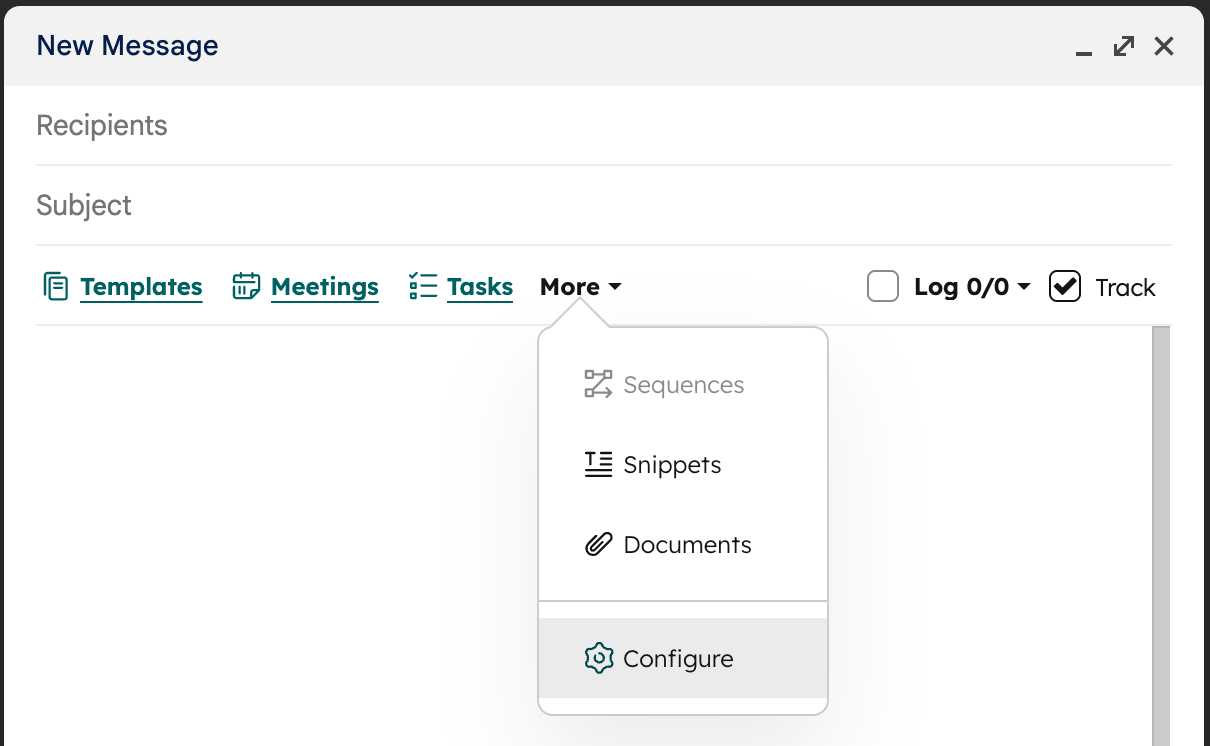
- In the compose window, click More. Then, select Configure.
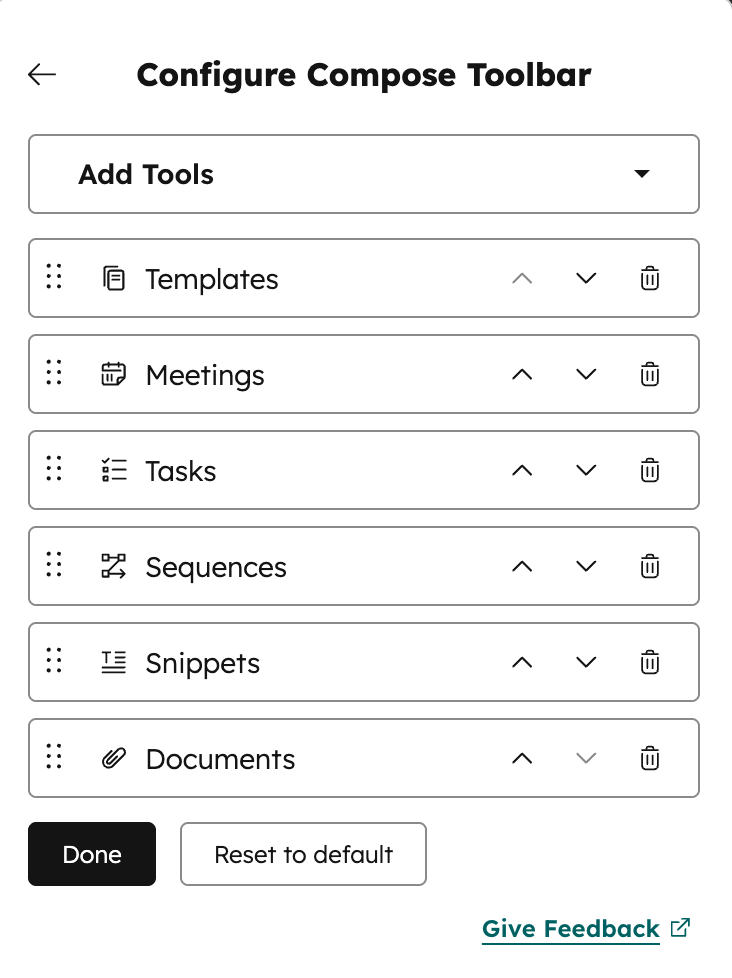
- To manage the tools displayed in the toolbar, click Add Tools.
- Select or clear the checkboxes next to each tool. Selected tools will automatically be added to the sales toolbar.
- To reorder tools, click the directional arrows or click and drag the tool to your preferred configuration.
- To hide a tool from the toolbar, click the delete icon next to the tool.
- Changes to the toolbar save automatically.
Who gets it?
This feature is available for all HubSpot hubs and tiers.



.png?width=193&name=jos%20(1).png)