
What is it?
A new folder tree view in the file manager that displays all files and folders in a clear, hierarchical structure. It lets you expand and collapse folders, see nested content at a glance, and move assets between folders via drag and drop or marquee select with familiar interactions.
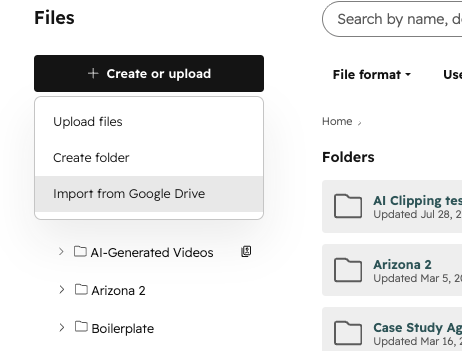
We also consolidated the previous upload/folder create options that used to be in the upper right of the File manager into a single Create or upload button on the left above the file tree.
Why does it matter?
Managing large libraries of files can quickly become difficult when folder structures are deep or scattered. The folder tree gives you a single, organized view of your entire file system, making it easier to find, group, and maintain assets without losing context.
For HubSpot admins or users working with high volumes of files, this means less time spent searching and reorganizing, and more time focused on creating and publishing content. The improved structure also reduces errors when moving or nesting files across campaigns and projects.
How does it work?
- Navigate to the Files tool in your account.
- Use the new left-hand sidebar to view the All files and folders root directory in a tree layout.
- Click the arrow icons to expand or collapse folders and explore nested structures.
- Select a folder to view its contents in the main panel.
- Drag and drop files or folders within the tree to reorganize them across different levels.
- Using your cursor, you can use marquee select to bulk-select files from the right panel and drag them into folders or subfolders in the tree on the left.
- Scroll within the tree to browse large folder structures while keeping access to additional sidebar tools like Trash and Stock Images.
To upload a file, import from Google Drive, or create a new folder in this new UI: Click the Create or upload button above the folder tree layout on the left sidebar.
Who gets it?
This feature is available for all HubSpot hubs and tiers.



.png?width=193&name=jos%20(1).png)