What is it?
You can now perform two essential actions when sending one-to-one emails
- Save a draft email and finish it later
- Edit a scheduled email to change the content or the scheduled date or time before sending.
Why does it matter?
Users today cannot save emails before they are ready to send them. Drafts make it easy to save your work to revisit later, collaborate with teammates for review, and not lose your work.
How does it work?
Save as Draft
When drafting an email, use the drop-down next to the Send button to select "Save as draft" instead.
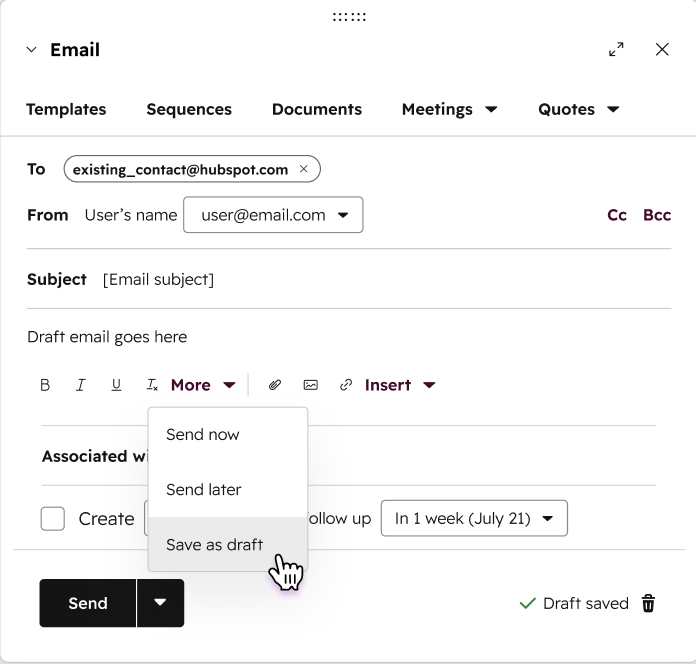
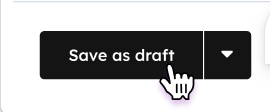
Click "Save as draft".
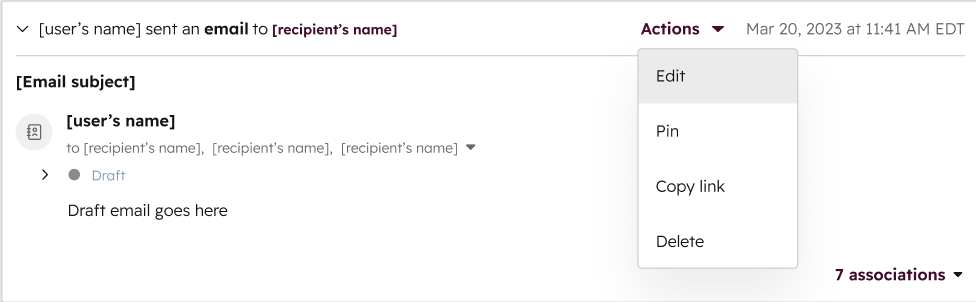
You can now view your draft from the timeline, edit it, or send it, using the Actions drop down menu.
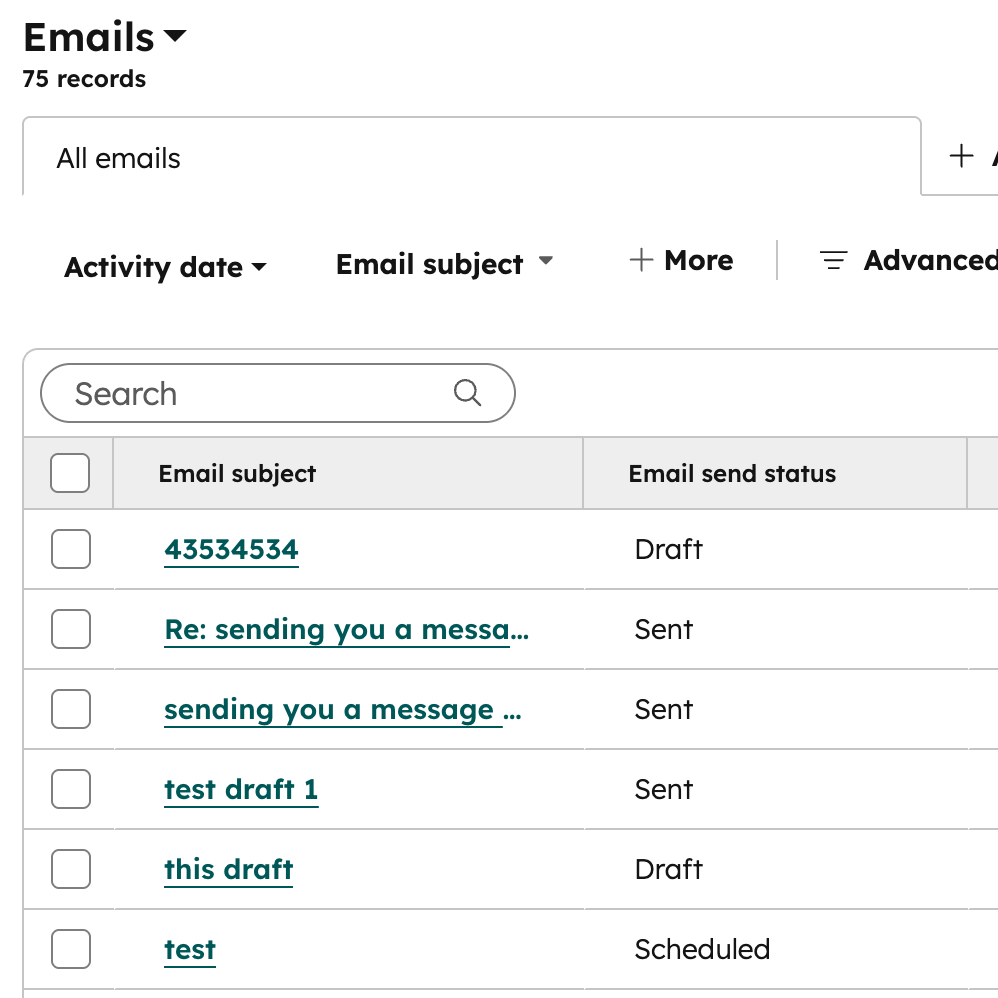
You can also view your draft emails on the Email index page. 'Draft' is a new value for the 'Email send status' property.
You can only see and edit drafts created by you. No one else can see or edit your draft emails.
Edit Scheduled
Navigate to the CRM timeline page with the Scheduled email you want to modify.
From the CRM timeline, select "Cancel and edit" from the Actions drop down of the email engagement. This will prevent the email from sending and open the email communicator so you can make any desired changes to your draft.
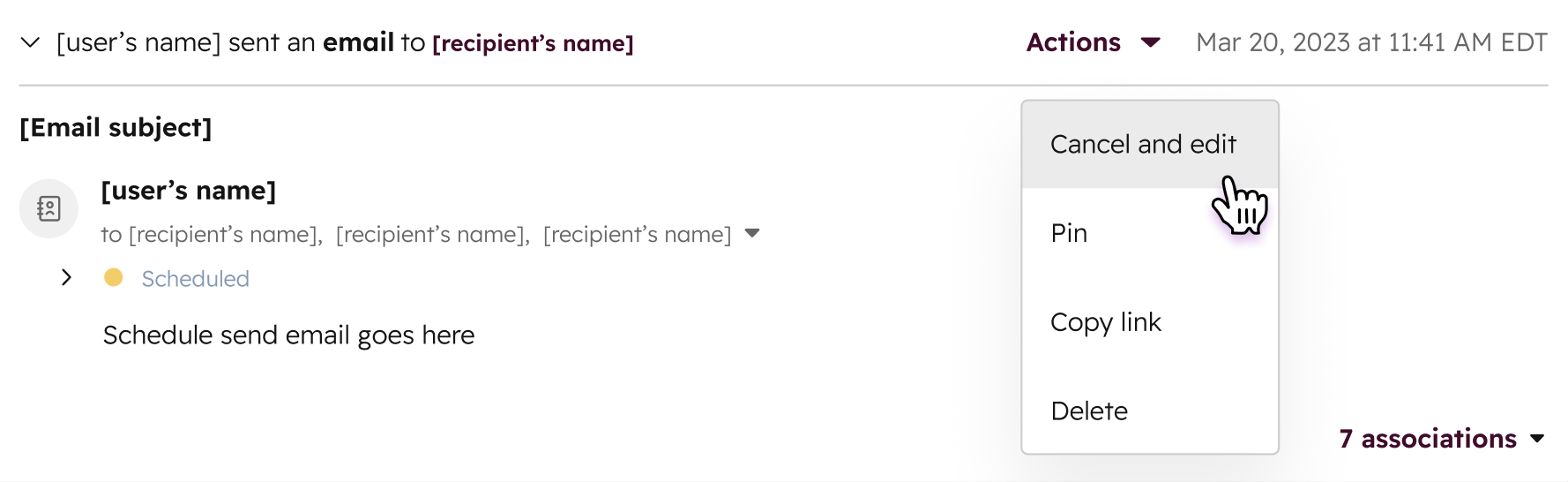
When you are satisfied, click to Send the email or choose Send later to reschedule it for a different time.
Who gets it?
All hubs and tiers



.png?width=193&name=jos%20(1).png)